VoidRoomVRC.LOL GAMES

A VRC.LOL social creation game

Make room
for your people.

Meet in the Clubhouse, make a home of your own, and build rooms with the Maker Pen. Your VRC.LOL account keeps your avatar and creations together.

PLAYER ROOMSMAKER PENYOUR AVATAR

Windows development preview · Includes the hosted VoidRoom Clubhouse.

YOUR FIRST ROOM01 / VOIDROOM
Expanded VoidRoom home with lounge seating, Maker workspace and a window reading area
A home to make your own. A Maker desk for your next idea.Rendered in-engine · Personal Home preview

Checking room service…

— public rooms

— live sessions

See what's happening
01 / ExploreFind your next world

Browse player rooms and check the latest session details.

Open room browser →
02 / CreateBuild something yours

Shapes, colours and circuits. Bring your room ideas to life.

Meet the Maker Pen →
03 / ConnectJoin the community

Follow development, share ideas and help shape what comes next.

Join VRC.LOL on Discord ↗

Room browser

Find your next room.

Browse the current public catalogue. Open a room for its details and session status.

Loading rooms…

01 / One account. Your worlds.

Your next room
starts with you.

Use your VRC.LOL account for VoidRoom. Sign in on the website to see your player account, or start sign-in from the game to connect that game session.

Manage your passkeys, recovery and profile in the central account page. Your avatar editor and room drafts live inside VoidRoom.

Inside the Maker PenWindows preview
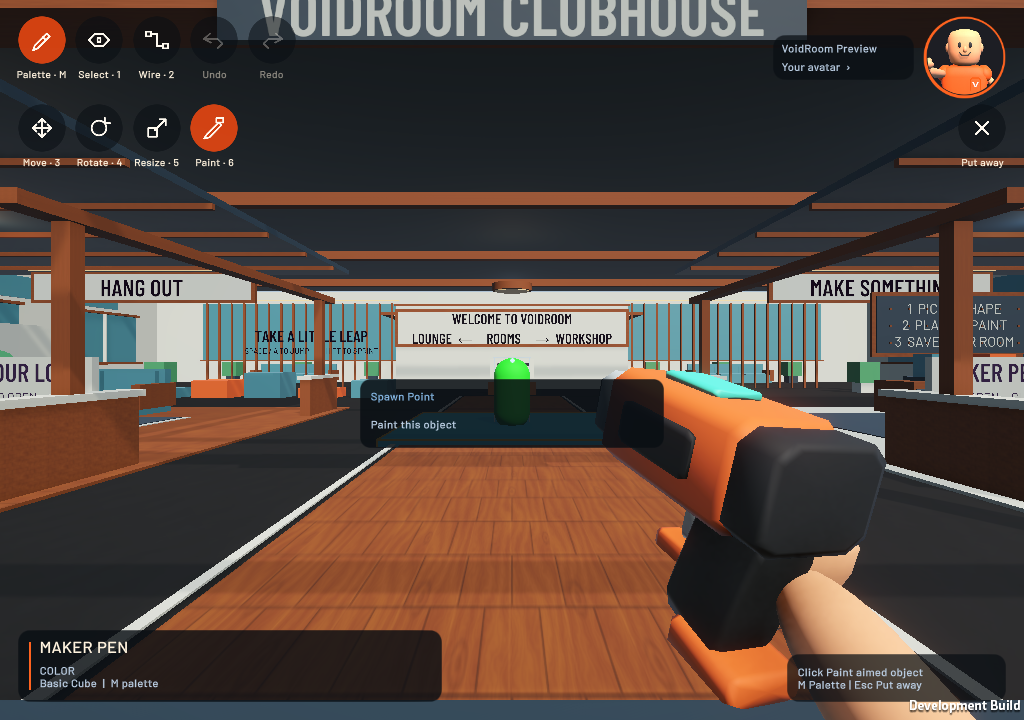
Held orange Maker Pen with Move, Rotate, Resize and Paint buttons, active orange Paint highlight and aimed-object feedback
Pick up the pen. Choose Move, Rotate, Resize or Paint directly from the toolbar. Aim at a piece to see its name and what your tool will do. The palette holds shapes, colours and circuits.
Explore the screenshot ⤢
Explore custom colours ⤢

From the first shape to the finishing touch

Your room.
Your rules.
Your Maker Pen.

Build a hangout, an obstacle course, or something nobody has thought of yet. Start small. Keep experimenting.

  1. Make it yoursPlace shapes, paint, move, rotate, and scale.
  2. Connect your ideasConnect circuits to make your creations react.
  3. Keep your progressSave your draft and come back to your next idea.
  4. Share your roomSubmit a separate room draft for review. Its file uploads automatically; approved versions can become public.
Read the building guide →Try creating in the preview

Pick a tool. Keep building.

Less menu time.
More making.

The working toolbar keeps Move, Rotate, Resize and Paint beside your room. The orange button shows the active tool. Open the palette for shapes, colours, circuits and detailed settings.

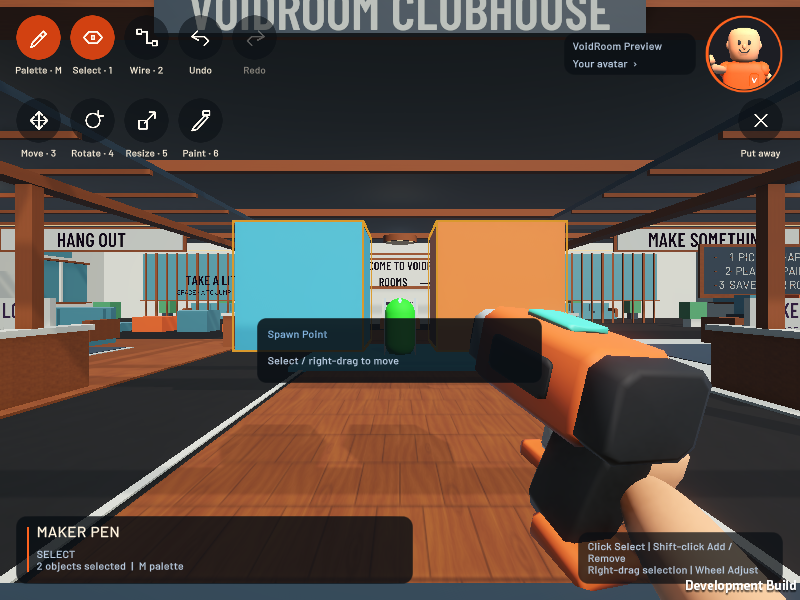
Maker Pen Select highlighted orange, two outlined cubes, a two-object selection count and Shift-click instructions
See what is active. Both selected objects are outlined. The HUD shows the selection count and how to add or remove pieces. This controlled render shows the real gameplay interface.
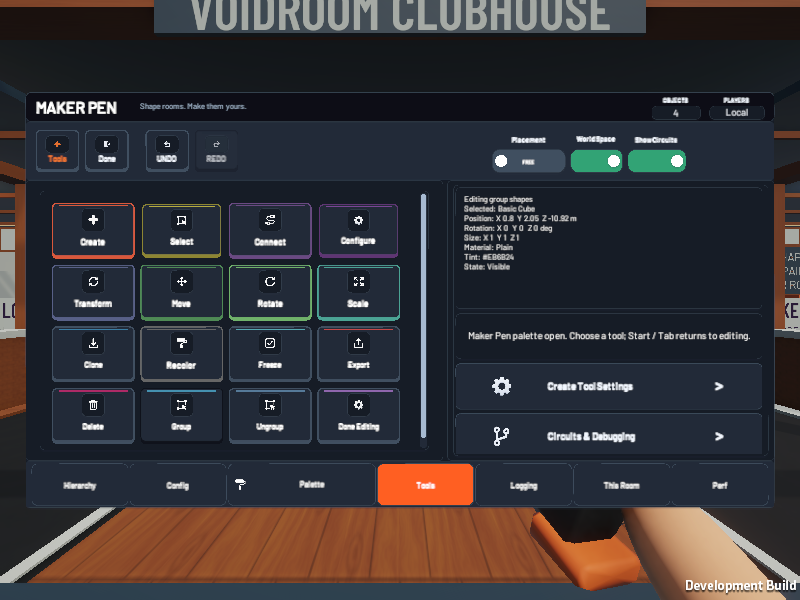
Maker Pen Tools palette showing Group, Ungroup and Done Editing, with the inspector labelled Editing group shapes
A creation, or one of its pieces. Edit Shapes works inside the group. Done Editing returns to whole-group selection. The inspector shows the current scope.

Keyboard & mouse

One drag. One edit.

Choose a tool
1 Select · 2 Wire · 3 Move · 4 Rotate · 5 Resize · 6 Paint. You can also click the working toolbar when the pointer is free.
Pick the piece you mean
In Select, Move, Rotate or Resize, right-drag an object under your crosshair. A selected member keeps the whole selection together; an unselected target becomes the new selection. A miss or a wall does not pull your previous selection.
Select several pieces
In Select mode, hold Shift and click to add or remove an object. On controller, hold LB and press RT. Plain click replaces the selection; Hierarchy has Clear selection. The HUD shows how many objects are selected.
Adjust while holding
For Move, scroll to bring the held object nearer or farther. For Rotate or Resize, scroll for a step while keeping right click held. Uniform resize keeps each object's proportions and scales the spacing between selected objects.
Finish and undo
Release right click to finish the drag. Ctrl + Z restores that whole edit; Ctrl + Y redoes it. Ctrl + D clones the selected object or chip.
Selection or primary?
Move, rotate, uniform resize, clone, delete, paint and freeze affect the selection. Paint an aimed selected object to colour the set. Exact XYZ fields, individual axis resize and Config apply to the primary object named in the inspector. Circuit chips remain separate.
Make a grouped creation
Select at least two shapes, then open the Maker palette and choose Tools → Group. Selecting a grouped shape selects its whole creation. Edit Shapes lets you work on individual pieces; Done Editing brings the group back together. New shapes join the group while editing it. Ungroup separates the pieces without moving them, and cloned groups stay independent.
Keep the draft
Completed editing steps are distinct from saving your room. Use This Room → Save Draft to keep your editable work on your account.

Controller: Start opens the palette, RT uses the selected tool, D-pad up/down adjusts it and LB + X / Y handles Undo / Redo. The right-drag instructions above are for mouse editing.

See all controls →

A place to start. Space to make it yours.

Your studio,
ready for your next idea.

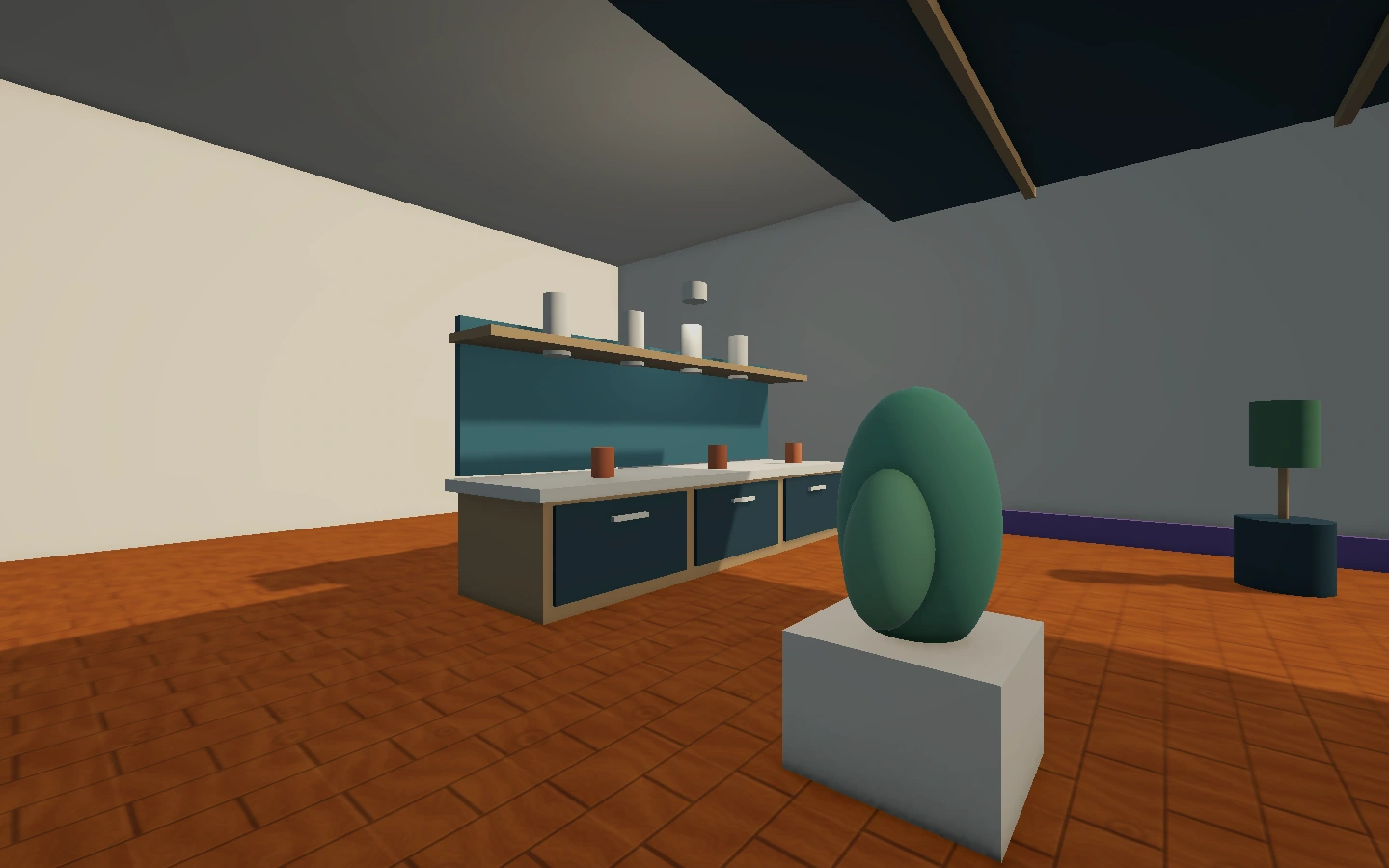
In the latest Windows preview, choose Build → New furnished studio to open a separate editable draft. It includes a lounge, a furnished book-and-armchair reading corner, a working circuit bench, Maker workspace, kitchenette, gallery and window reading nook. Your existing saved home stays yours.

Purple studio sofa with rounded orange arms beside a wooden coffee table with legs
Give your next room a comfortable start. Rounded sofa edges, a coffee table with visible legs and a furnished reading corner beyond the lounge.
Studio bed with a rounded wooden base, purple bedding and a bedside lamp
Make the details your own. Try new colours, move the furnishings or add a sign with the Maker Pen. Save Draft keeps your work; publishing remains a separate upload and review.
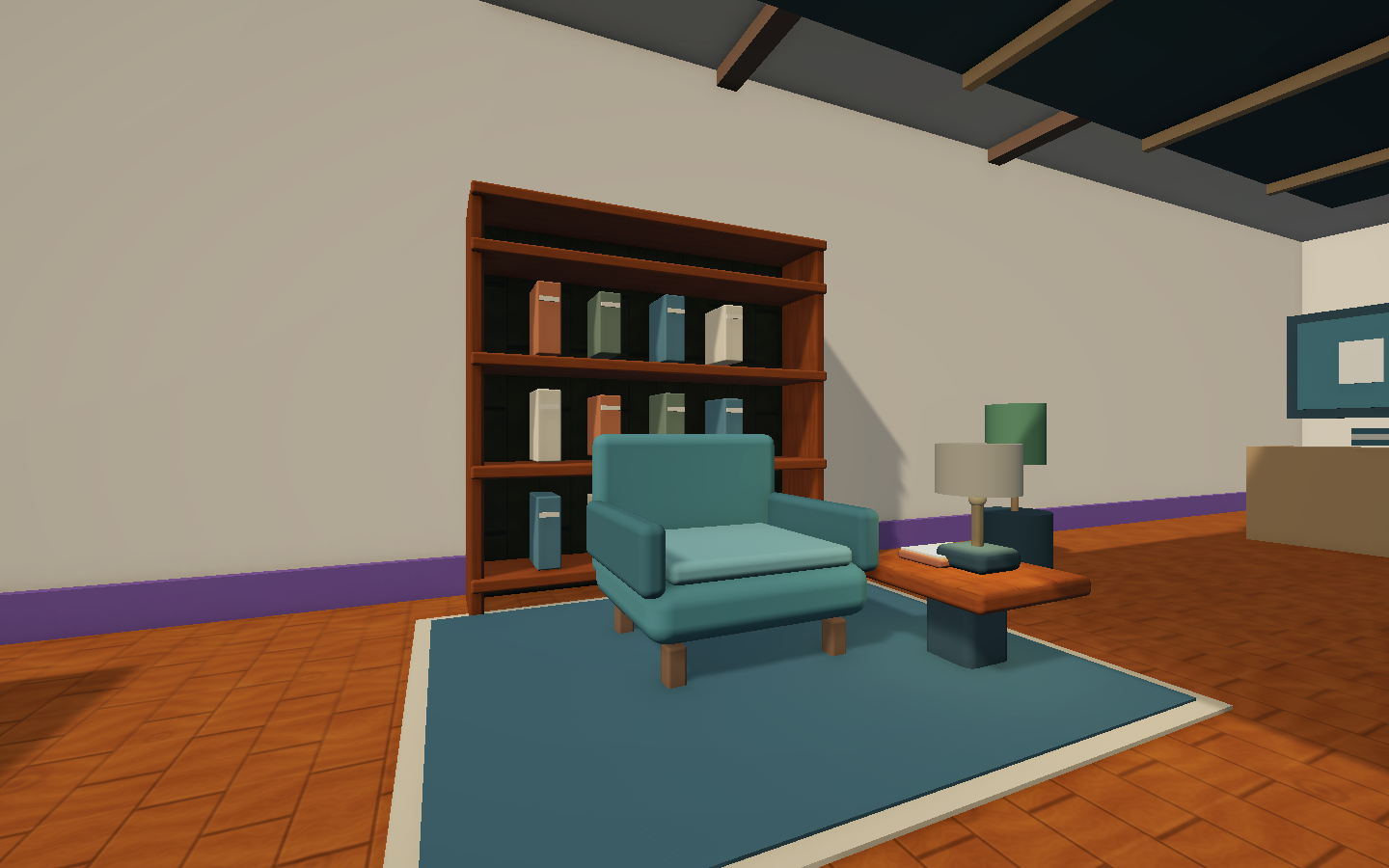
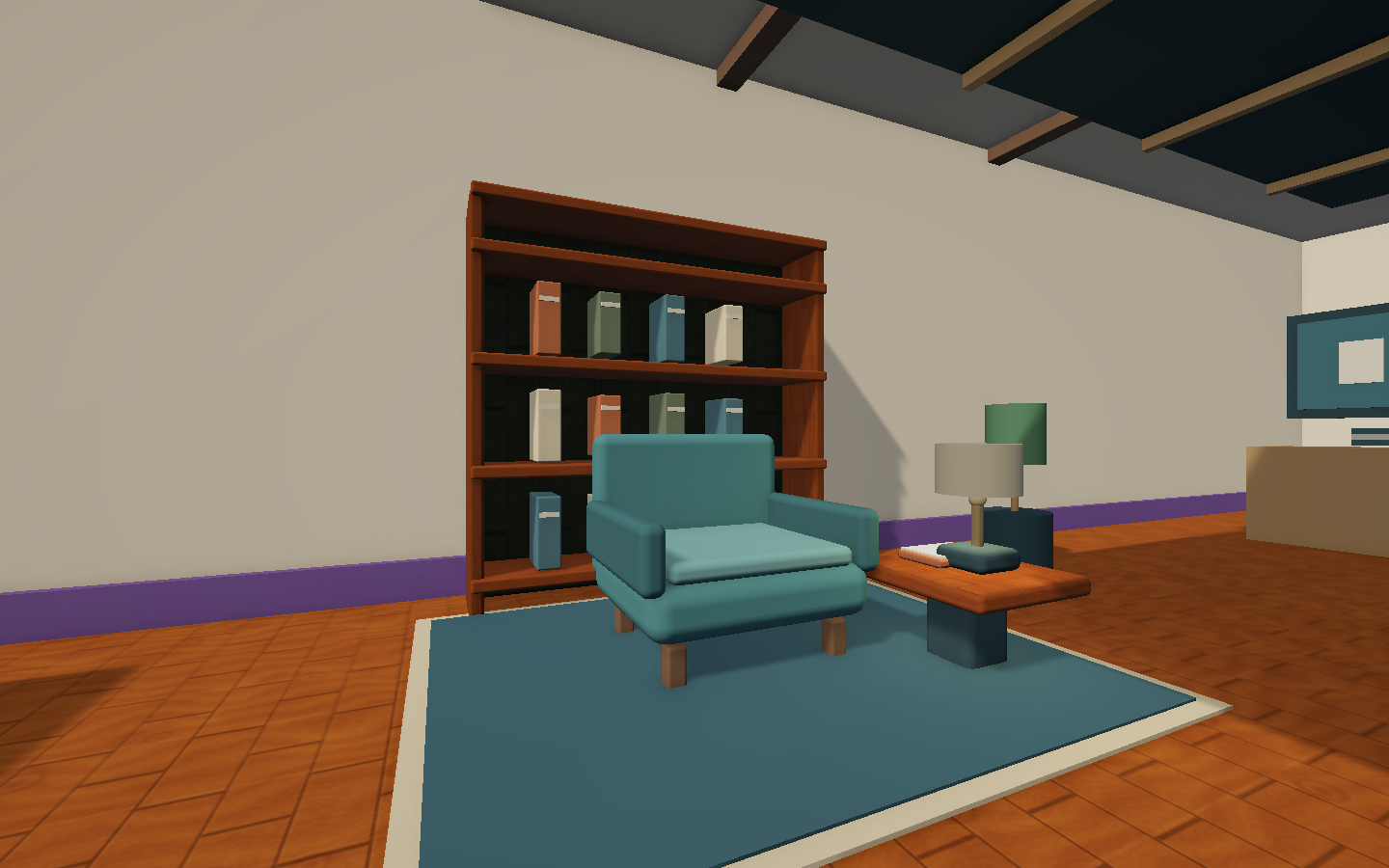
Teal armchair on a bordered rug in front of a wooden bookcase with twelve coloured books, beside a lamp and book on a small table
Room to slow down.
Actual packaged studio, rendered in-engine.

A little more comfort

Make a corner
worth coming back to.

A rounded armchair, low-gloss wood shelving and a small lamp bring more detail to the studio's lounge wing. The reading area sits off the main path, with an open approach beside the sofa.

  • Warmer details. Twelve coloured books, a side table, a bordered rug and a lamp make the space feel lived in.
  • Space to move. Decorative books, rugs and lamp pieces do not block your avatar. Furniture still has collision.
  • Make it yours. Change the chair colour, move a shelf or adjust the lamp with the Maker Pen, then Save Draft.

Open Build → New furnished studio to try this layout. Existing saved homes and the hosted Clubhouse stay separate.

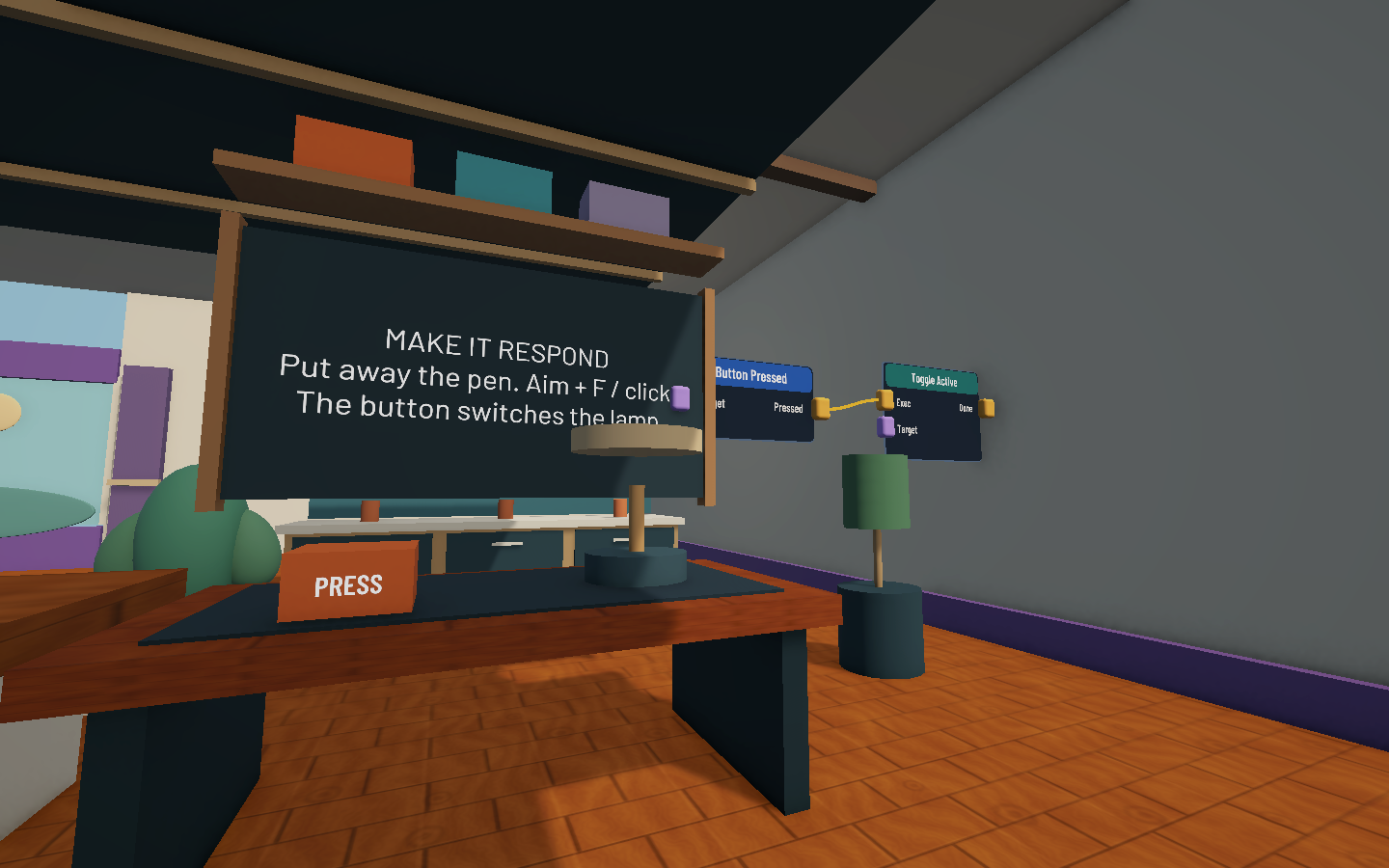
VoidRoom studio workshop with an orange press button, lamp, readable instruction board and two connected circuit chips
Something you can try, then make your own.
Current packaged studio · Lamp shown off.

A working example, in your room

Press a button.
See your idea respond.

  1. Try it in play. Close the palette and put away the Maker Pen. Aim at the orange bench button and press F, click, or use controller X. Press again to switch the lamp back off.
  2. See how it works. Equip the Maker Pen and inspect the two chips beside the bench. Button Pressed targets the button; Toggle Active targets the lamp. The gold connection runs from Pressed to Exec.
  3. Keep your version. Change the lamp's colour, move the bench or try a different action. Use Save Draft in This Room to keep the modified studio on your account.

New furnished studio opens a separate draft. My Home returns to your saved home. Save Draft keeps your work; publishing is a separate upload and review.

Explore the circuit guide →
Get the current studio preview →

These screenshots show the new furnished studio. Existing saved homes and the hosted Clubhouse are separate rooms.

Three ideas for your first build

Small starts.
Rooms worth returning to.

These are projects to try with the current Maker Pen, rather than extra rooms in the public catalogue. Build one piece, test it in play, then add the next.

01 / A PLACE TO MEET

A lounge for your friends.

Start with a welcoming space and a few places to sit.

  1. Place a broad floor, then use boxes for a table and benches.
  2. Scale and rotate each piece in the inspector. Mix a colour in Palette, or sample a prop to make the pieces match.
  3. Leave a clear arrival space. Save a draft before trying a new layout.
02 / SOMETHING TO TRY

Your own jump trail.

Turn a handful of shapes into a short movement challenge.

  1. Place a row of low platforms with easy gaps.
  2. Test each jump with the player controls before raising the difficulty.
  3. Use colour to show the route. Keep a safe floor underneath the course.
03 / A LITTLE SURPRISE

A room that reacts.

Experiment with circuits after your first layout is comfortable.

  1. Open the circuit tools and start with one simple connection.
  2. Test the result before adding another connection or object.
  3. Save a separate room draft and submit it for review when it is ready to share.

Your personal home stays private. Publishing uses a separate room draft; an upload and a review are required before an approved version can become public.

Your first room, one edit at a time

Make a start.
Know what to do next.

Use the Maker Pen in a room you can edit. These steps follow the current Windows preview; the controls shown are rendered from the game.

Get the latest preview →
  1. Place your first piece.

    Press M to equip the Maker Pen. Press M or Tab again to open its palette. Choose Create, pick a shape, then close the palette and click or press RT to place it. You can move and look around while building. Start with a low platform or a table. Keep the arrival space and walking routes clear.

  2. Line it up.

    In Select or Move, aim at the piece you want and right-drag to move it. The name and action appear below your crosshair. Use Rotate or Scale to right-drag those changes; release to finish one undoable edit. Open Move from Tools to reach the Movement panel. Choose Free for placement at the pen distance, Surface to place against what you point at, or Grid to align to world axes. Pick a step from 5 cm to 1 m; the X, Y and Z movement buttons use that interval too.

    For an exact position, rotation or size, enter X, Y and Z under Exact Transform, then choose that row’s Apply. Position uses room coordinates in metres; rotation uses degrees. Size changes the object’s own axes.

  3. Give it a colour.

    Open Palette. Choose a preset, mix RGB values or enter a six-digit hex colour such as #8B5CF6. Apply custom colour paints the selected object. Sample selected colour copies its tint. Paint in room closes the palette and equips the paint tool; aim at an object and click or press RT to paint.

    Moving the colour sliders only changes the preview. It does not repaint your room.

  4. Try it, then adjust.

    Use Done to leave Maker Pen editing and walk around your build. Check jump gaps, headroom and floor collision. T or controller View switches between first- and third-person during gameplay.

  5. Keep room to experiment.

    Undo restores the previous edit; Redo brings it back. Changing placement settings or previewing a custom colour does not create a room edit. A new actual edit replaces the pending Redo path.

    Use Freeze in Tools to protect a selected object from moving, resizing, cloning or deleting. Choose Freeze again to unlock it.

  6. Save before you leave.

    Open This Room and choose Save Draft to keep your draft on your VRC.LOL account. Wait for the save result before quitting. Your personal home stays private; public sharing uses a separate room draft, an upload and review.

Small details. A room of your own.

Give your room a little life.

A lamp beside a seat. A sign above a doorway. The sound of a fireplace nearby. Use Config to add the finishing touches, then save the draft.

01 / Light a corner

Make an object a lamp.

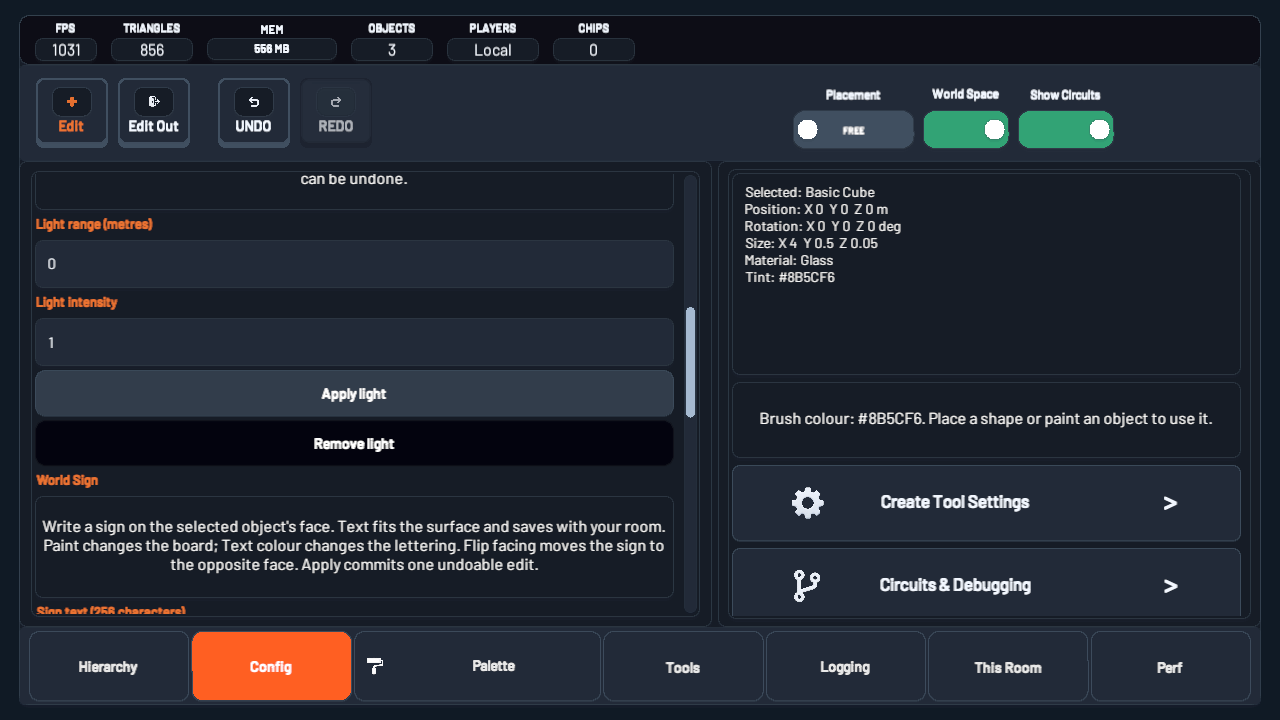
Select an object you can edit, then open Config → Object Lighting.

  1. Paint the object the colour you want its light to use.
  2. Enter a range from 0–30 metres and intensity from 0–3, then choose Apply light.
  3. Walk around to check the result. Use Remove light or range 0 to turn it off. Undo restores the previous edit.
Maker Pen Config page with light range, intensity and Apply light controls
See the light controls ⤢
My lamp is not lighting up.

Check that the range and intensity are above 0. Hidden objects do not show lights. Frozen objects need to be unlocked before you edit their lighting. Painting an existing lamp updates its light colour immediately.

02 / Point the way

Write a sign people can read.

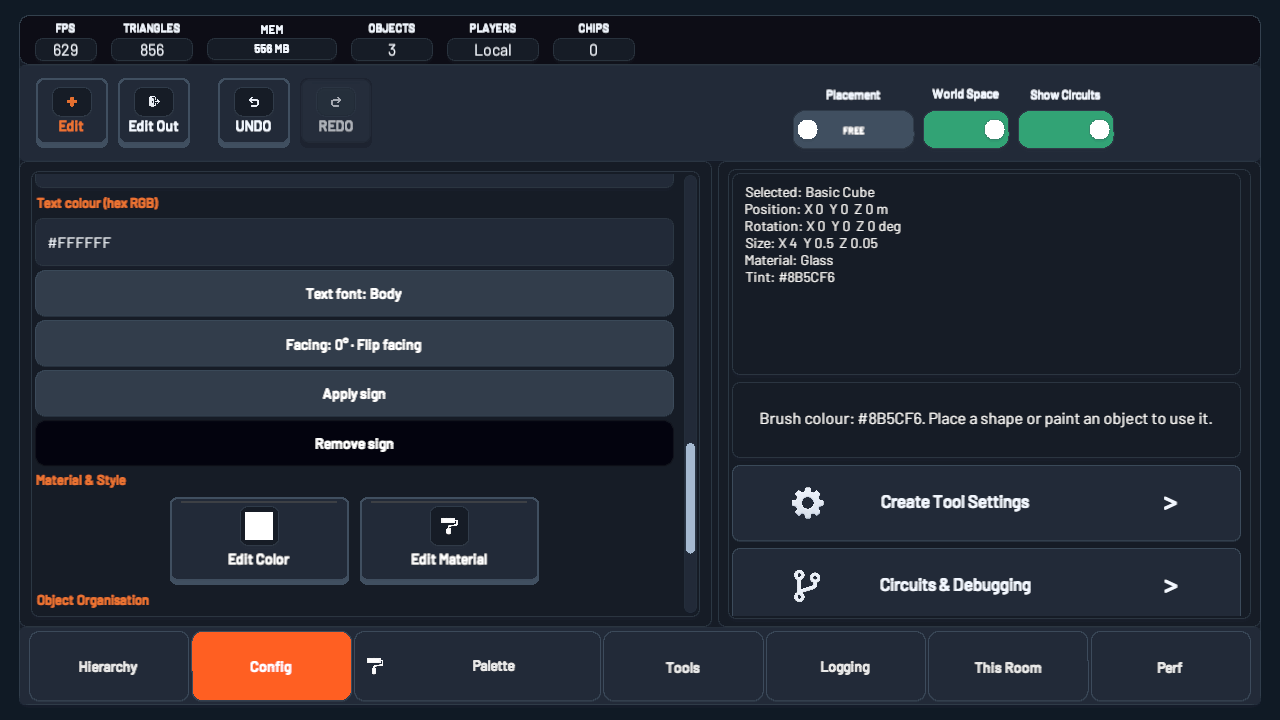
Select a board or shape, then open Config → World Sign.

  1. Enter up to 256 characters. Use new lines to split directions or a welcome message.
  2. Set a six-digit text colour such as #FFFFFF, choose Body or Heading, and flip facing if the text is on the other side.
  3. Choose Apply sign. Walk around and check the board, then save your draft. Remove sign is undoable.
Maker Pen Config page with world sign colour, font, facing and Apply sign controls
See the sign controls ⤢
The sign is on the wrong face.

Choose Flip facing and then Apply sign to place the lettering on the opposite face. Paint changes the board; Text colour changes the letters. Empty sign text removes the sign. Font changes and board resizing keep the lettering updated.

03 / Set the atmosphere

Let your room sound like home.

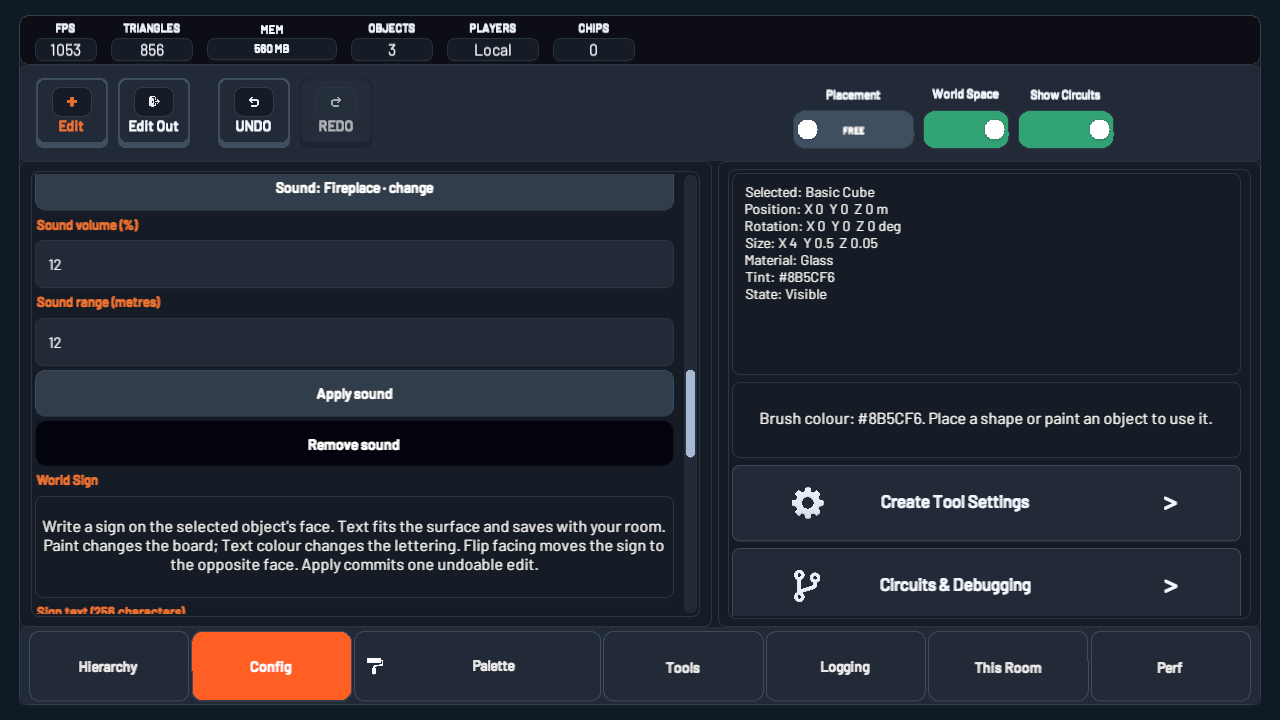
Select an object you can edit, then open Config → Object Sound. Add a crackling fireplace, water, garden ambience or a quiet room tone.

  1. Use the Sound button to cycle through the four choices. Choosing a sound leaves your room unchanged until you apply it.
  2. Set the object volume from 0–25% and its range from 2–24 metres, then choose Apply sound.
  3. Walk toward and away from the object to check the effect. Use Remove sound to clear it, or Undo to restore the previous settings.
I cannot hear the sound.

Check the object volume is above 0 and you are within its range. Hidden or inactive objects are silent. In Settings, turn room ambience on and check Ambience volume. Unfreeze a frozen object before changing its sound. Read-only rooms need edit access.

Maker Pen Config with Fireplace sound choice, volume percentage, range in metres and Apply sound
Explore the sound controls ⤢

Your light, sign and sound settings travel with the room draft. In This Room, choose Save Draft and wait for confirmation. If you made newer edits during the upload, save again to include them. Saving a draft does not publish it.

Make your room respond

An idea. A few chips.
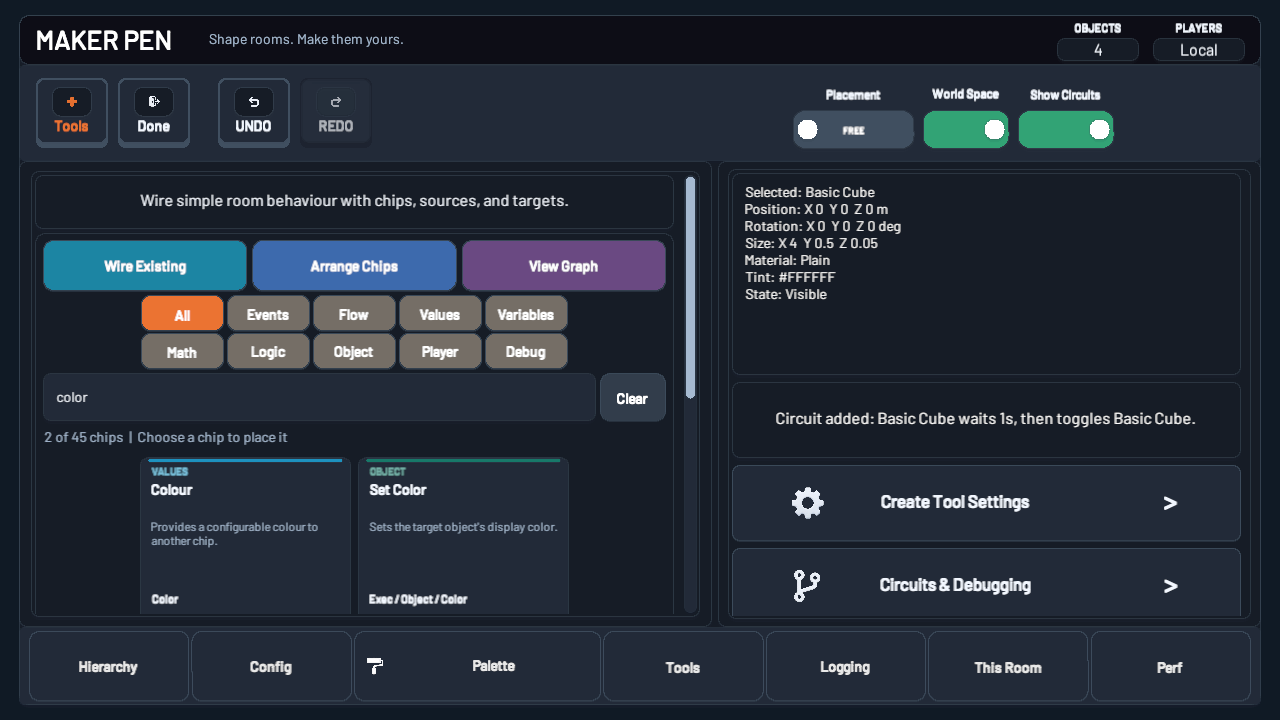
A little spark.

Connect events, values and actions with the Maker Pen. Clear socket colours tell you what a wire carries; a travelling light shows when an execution connection runs.

Circuit board with Room Start wired to Delay, a bright travelling execution light, and readable numeric and Boolean values inside coloured rims
Current game components · Controlled example board · Select the image to explore it ⤢

Find the right chip

From an idea to a working connection.

Search the circuit palette by name, effect or port type. Try colour, delay, Boolean or float. Every card explains what its chip does and which types it uses.

  • Narrow it down. Choose a category while searching. Variables, Player and Debug now have their own filters.
  • Place, then connect. Choose a card to return to the room with that chip ready to place. Use Wire Existing to connect compatible sockets.
  • Copy with control. Clone keeps a chip's settings and room target, with a new ID. Its wires stay on the original; connect the copy when you are ready.

Clear removes your search. Browsing and filtering do not change your room or Undo/Redo.

VoidRoom Maker Pen circuit palette with search, ten category filters and descriptive Colour and Set Color cards
Search by effect or type. Choose the chip you need.
Current Unity interface · Controlled example.
Execution
Gold · Triggers the next action.
Boolean
Pink-red · True or False.
Number
Cyan · A decimal value.
Text
Soft pink · A message or text value.
Vector 3
Blue · X, Y and Z together.
Object
Purple · Set a room target with Use Target.
  1. 01

    Start with a small chain.

    In a room you can edit, open Tools → Connect to reach the circuit palette. Try Room Start → Delay → Set Active. For Set Active, select the room object first, select the chip, then choose Use Target.

  2. 02

    Connect output to input.

    Choose Wire Existing, pick an output socket, then a compatible input. In the example, connect Room Start’s Start to Delay’s Exec, then Delay’s Done to Set Active’s Exec. Choose Arrange Chips for more space around the connections. Execution inputs can receive more than one event. A value input has one source: connecting a different value replaces its previous wire. Choosing an existing connection keeps it and leaves Undo/Redo alone.

  3. 03

    Read the values. Follow the light.

    The coloured rim identifies the value type. The dark centre keeps the text readable. Long numbers use a compact preview without changing the saved precision. Select a Number, Boolean, Text, Vector or math chip and choose Read value. Its output name, type and resolved value appear in the Maker Pen status card without running an action or changing your draft. For an event or action, choose Test after the room finishes syncing. An execution pulse travels from output to input, then fades. An idle wire stays still.

  4. 04

    Keep the working version.

    Use View Graph to inspect connected chips, and select a card to edit its settings. Undo and Redo include circuit edits. Save your draft in This Room after testing.

Windows development preview

A TEAM. A MARKER. ONE MORE ROUND.

Make room for a little competition.

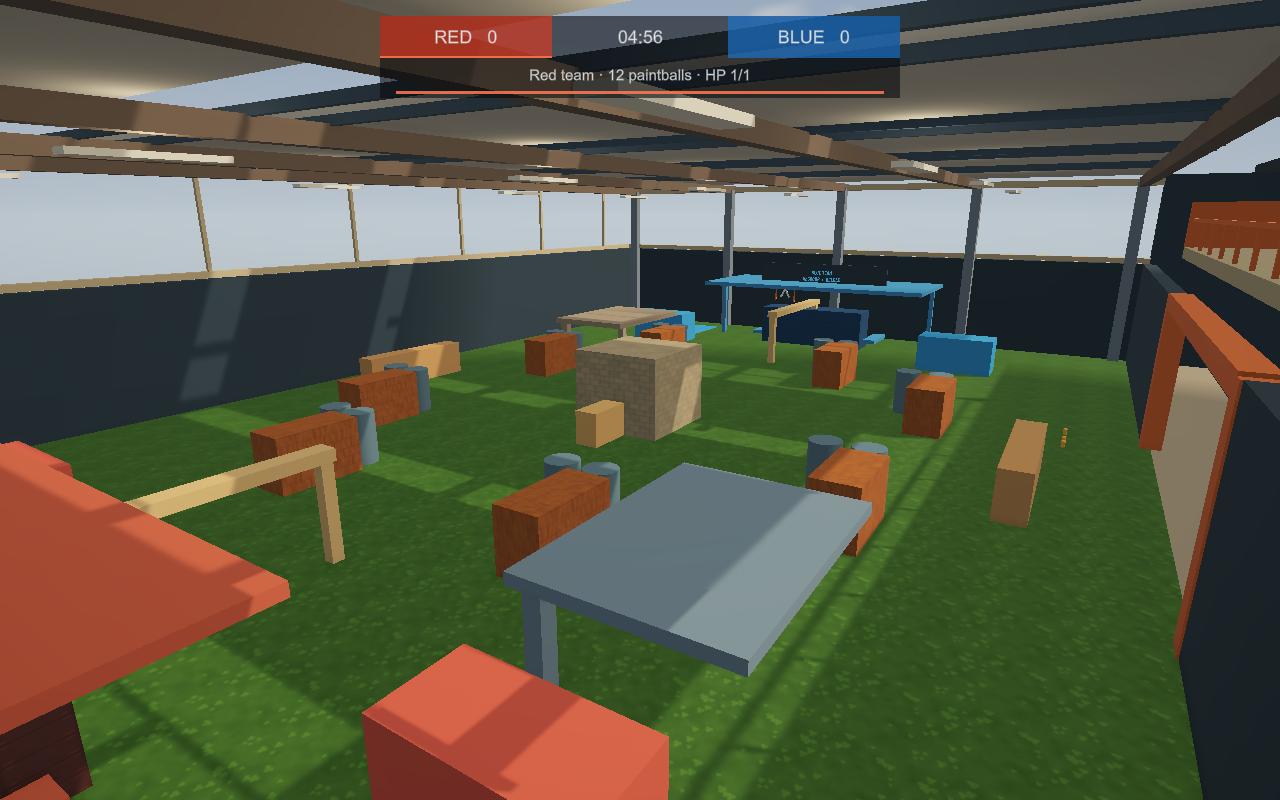
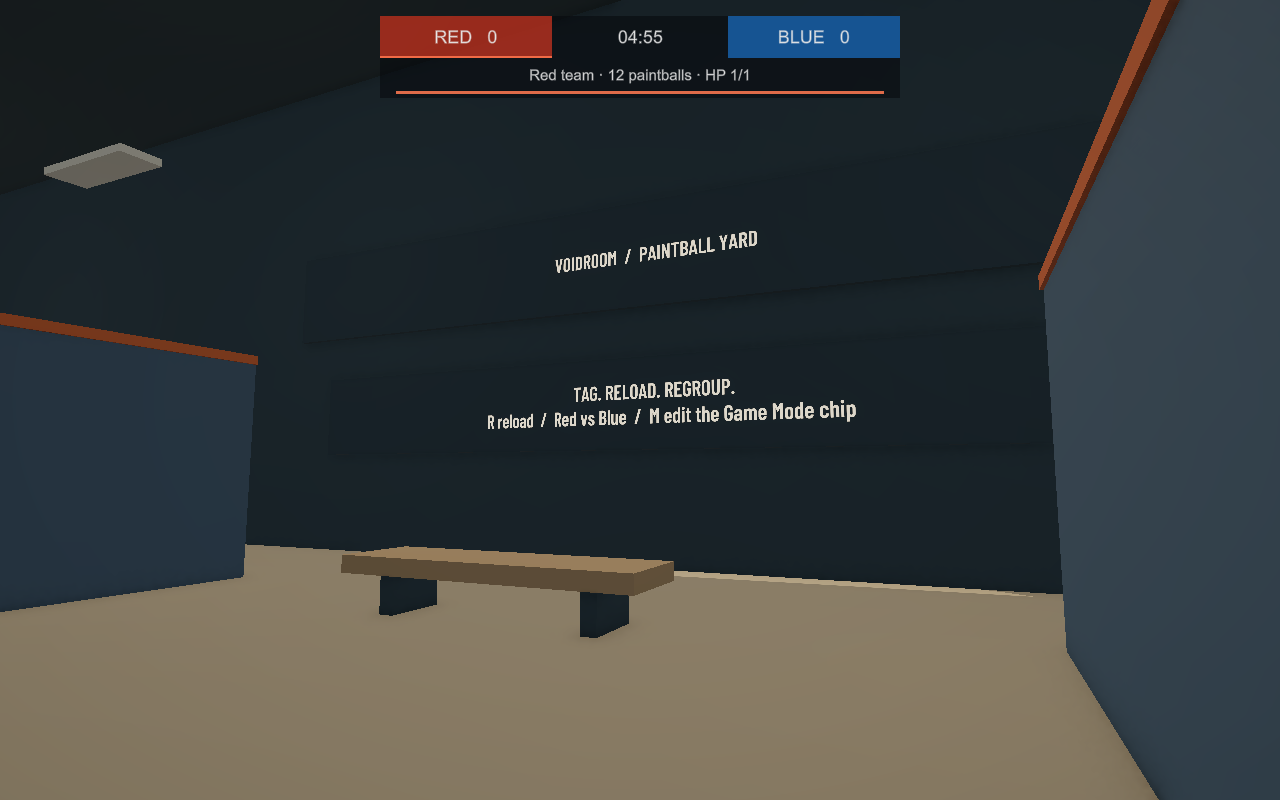
Open Build → New Paintball Yard in the latest Windows preview to create an editable indoor arena. Meet in the lobby, play across covered lanes, or watch from the protected gallery. For solo practice, set the Game Mode chip’s Minimum players to 1. Multiplayer hosting still needs a compatible host.

Indoor VoidRoom paintball arena with cover lanes, roof beams and team-coloured basesView screenshot ⤢

Inside the arena.

Covered lanes, team bases and a high roof with skylights.

VoidRoom paintball lobby with seats, branding and an arena entranceView screenshot ⤢

Meet before the match.

A separate arrival lobby leads into the field.

Elevated paintball spectator gallery overlooking the indoor arenaView screenshot ⤢

Watch from above.

The protected gallery gives spectators a view across the field.

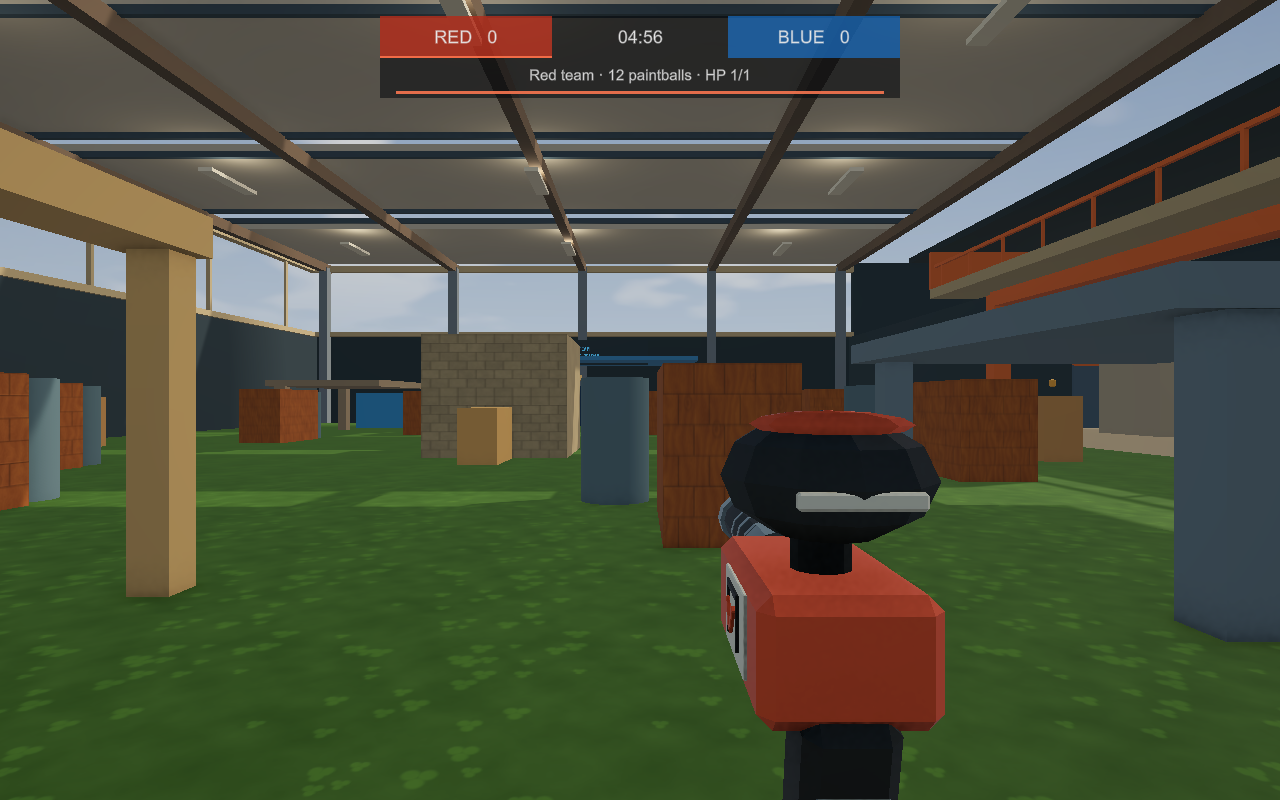
Team-coloured paintball marker with a hopper, barrel and grip beside the red-blue score HUDView screenshot ⤢

Pick a side. Take your shot.

A held paintball marker, ammunition and team scores in the actual game interface.

BUILT TO PLAY.

A marker that feels like yours.

A proper barrel, hopper, angled grip and original VoidRoom detailing give each marker a clear silhouette. Red and blue accents show your team. Other players see your held marker and where you aim; the hand follows its grip.

Varied firing pops, mechanical reloads and paint impacts bring the field to life. Nearby shots have positional sound, with a separate effects volume and mute setting.

Included in the latest Windows development preview. Try the Paintball Yard draft from Build; a compatible host is required for multiplayer.

Take your shot.

A short pneumatic pop · Firing preview

Select play to listen

Ready for another round.

Clicks and air release · Reload preview

Select play to listen
Two example avatars holding red and blue VoidRoom paintball markers with branded side panelsView screenshot ⤢

See the team. See the aim.

Original team-coloured markers, shown on actual avatar rigs.

YOUR ROOM. YOUR MATCH.

A Game Mode chip you can tune.

Choose the score limit, round length and minimum players. Set health, damage, respawn delay, protection, friendly fire and marker settings. Spawn Player circuits can use several arrival points or choose a team.

The host runs the match and validates hits, ammunition and respawns. The lobby and gallery are safe areas; entering the field joins a balanced team.

These screenshots use example players in the development preview. The latest Windows preview includes the Paintball Yard draft and Team Battle. Multiplayer requires a compatible host. Capture the Flag is a future addition.

Follow development
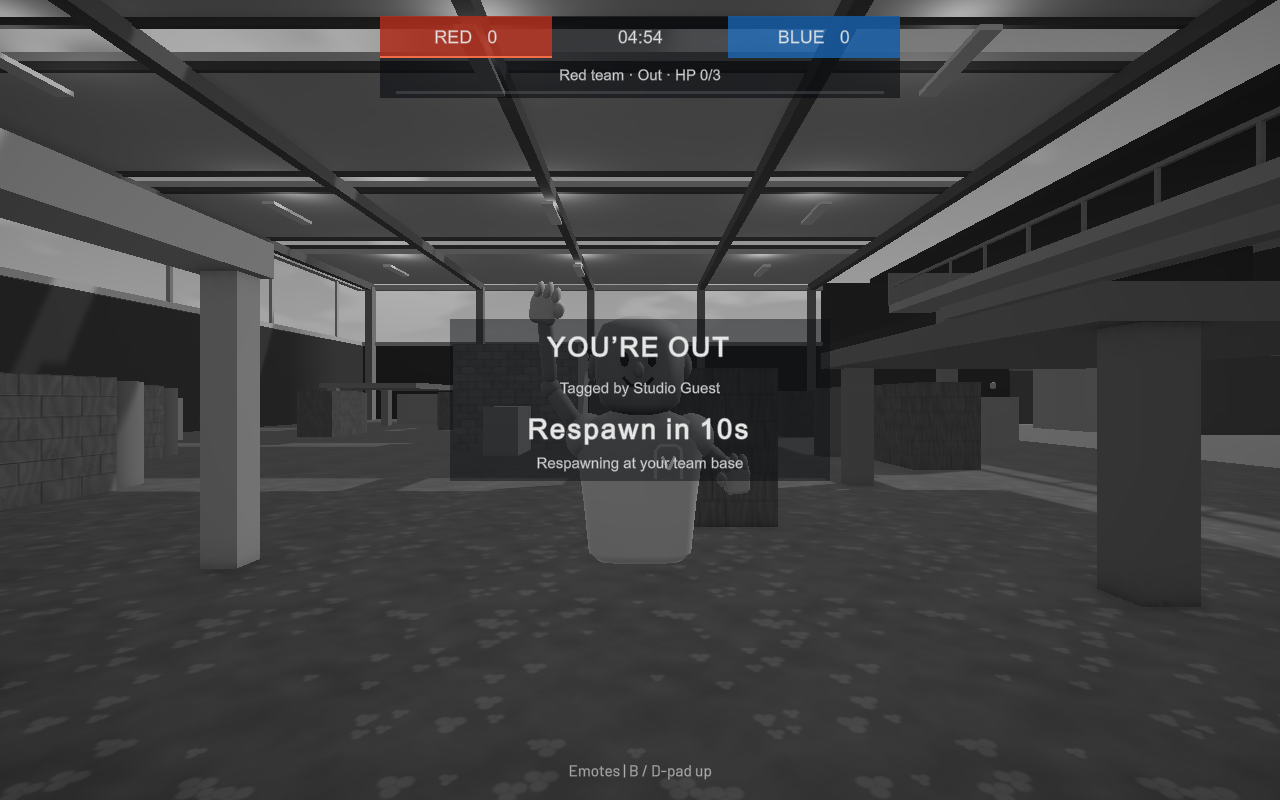
Grey paintball out screen with tagger Display Name, respawn countdown and raised handView screenshot ⤢

Tagged? You’ll be back.

A subtle grey view, raised hand and countdown show when you can rejoin.

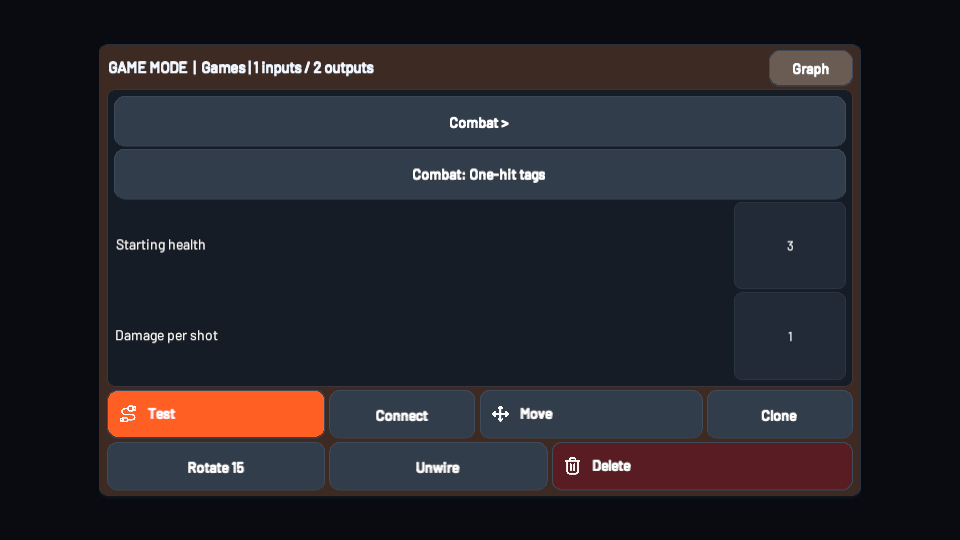
Game Mode chip Combat page showing one-hit and health controlsView screenshot ⤢

Choose how a tag works.

One-hit tags or health, with starting health and damage per shot.

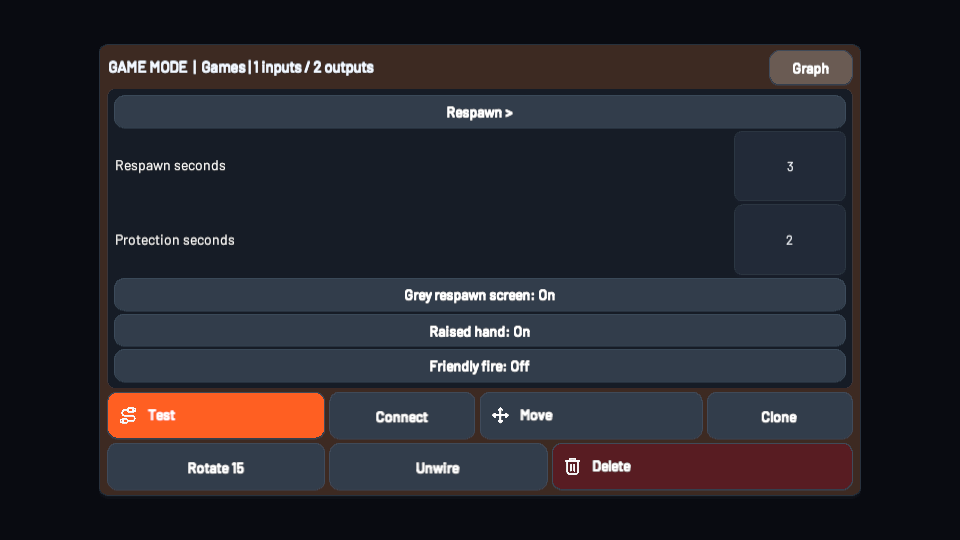
Game Mode chip Respawn page with labelled delay and protection settingsView screenshot ⤢

Set the return to play.

Respawn delay, protection, grey view, raised hand and friendly fire.

Your player. Your personality.

A look that goes with you.

Choose your colours, saved face style, hairstyle and glasses in the game. Save your look to your VRC.LOL-linked VoidRoom profile and wear it when you enter a room. Automatic blinking and brief expressions bring it to life while keeping your saved style.

Get the Windows preview
Windows development preview

More ways to feel like you.

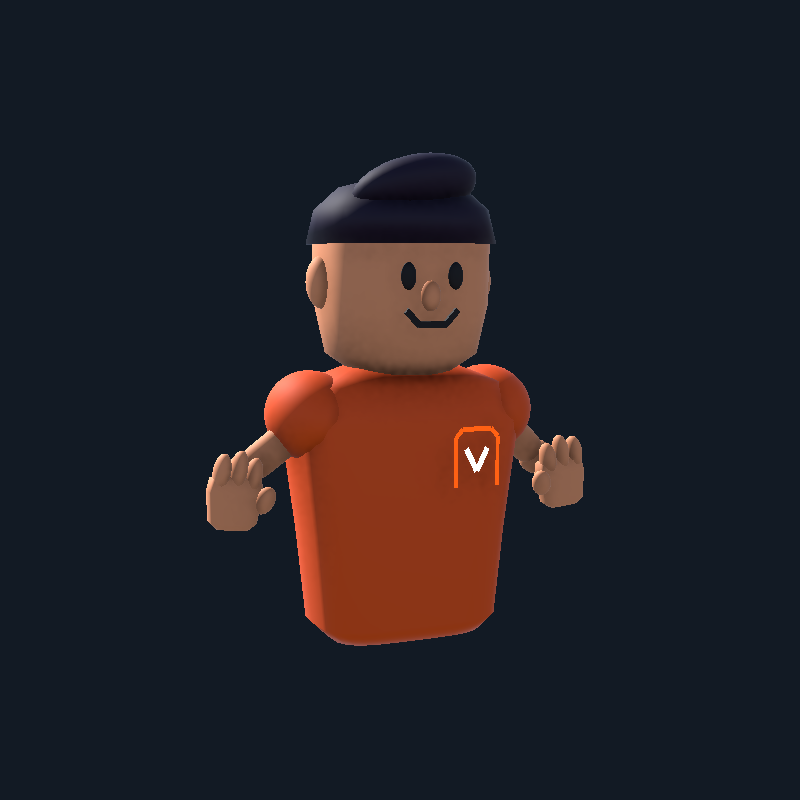
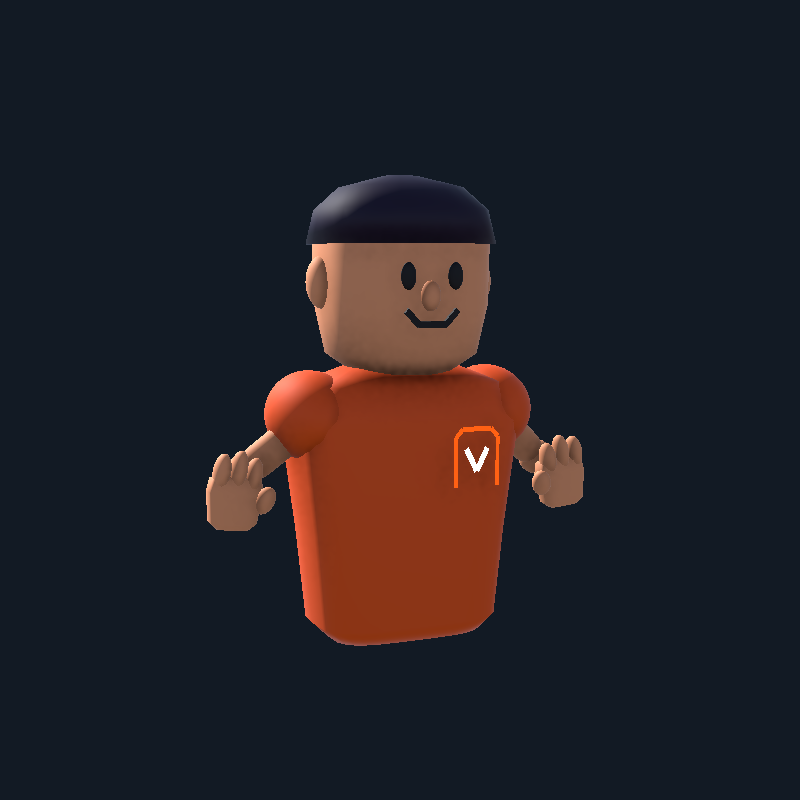
The latest wardrobe includes more hairstyles, rounded fingers and thumbs, and better arm bends. A larger preview makes it easier to check a look from every side.

  • Eight hairstyle choices
  • New arm and hand shapes
  • Larger turnable preview
Upcoming VoidRoom wardrobe with a large orange-shirt avatar preview, turn controls and appearance categoriesView full screenshot ⤢
The wardrobe, shown with an example player. Select any screenshot to take a closer look without leaving this page.

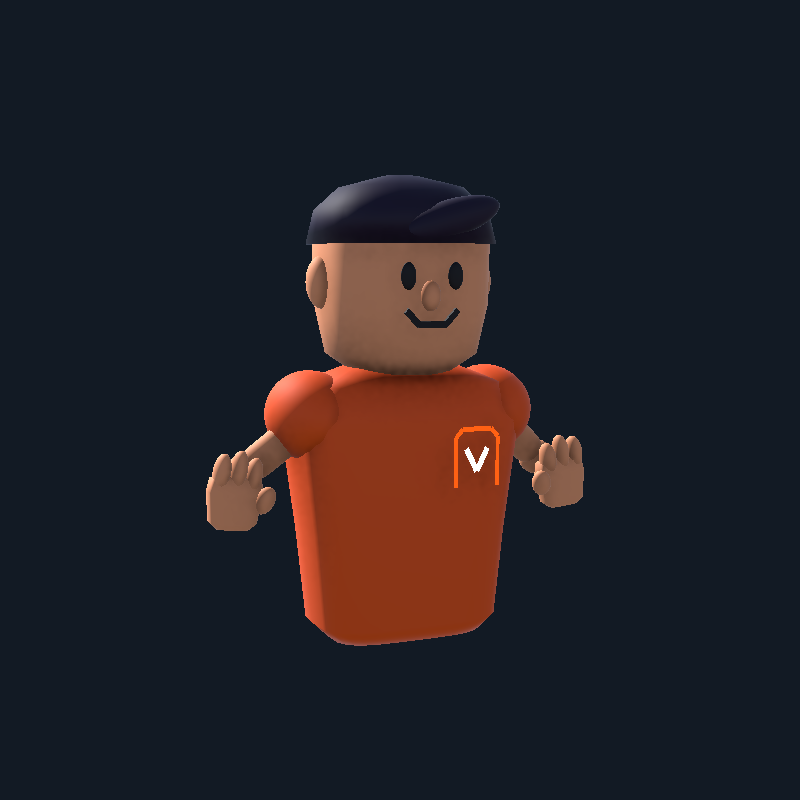
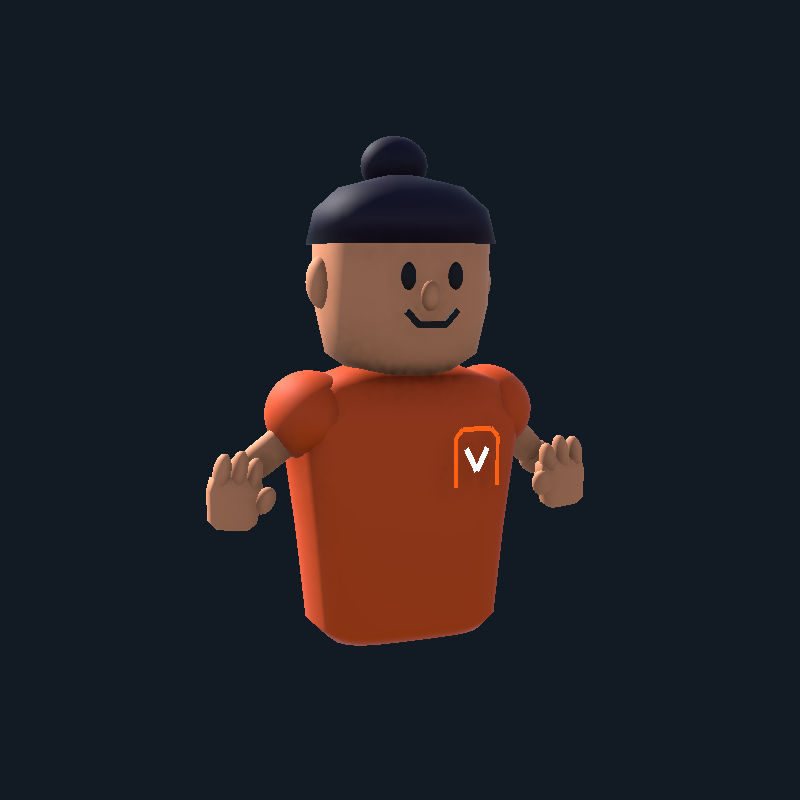
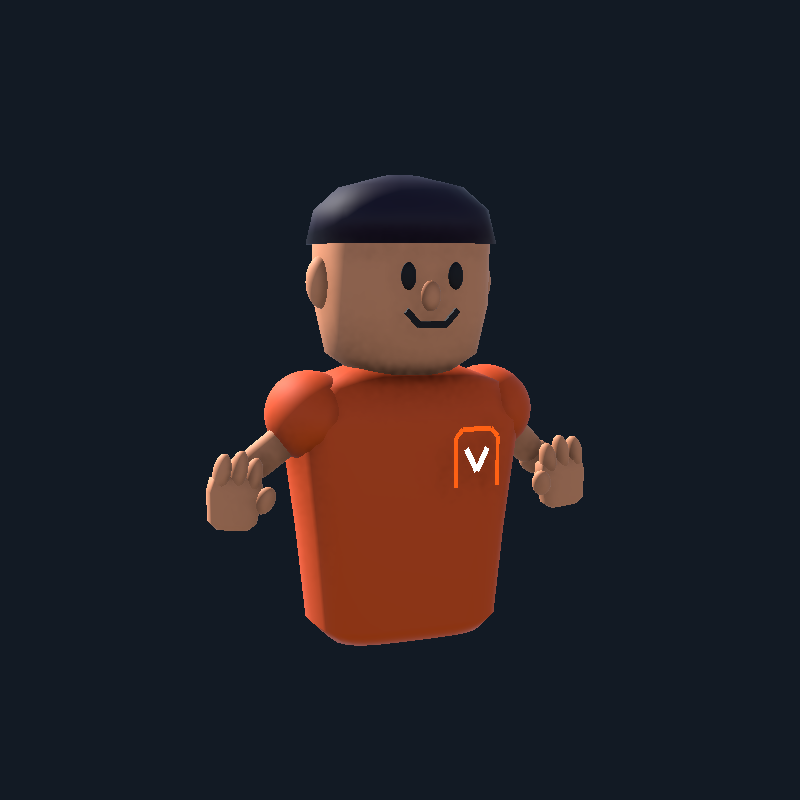
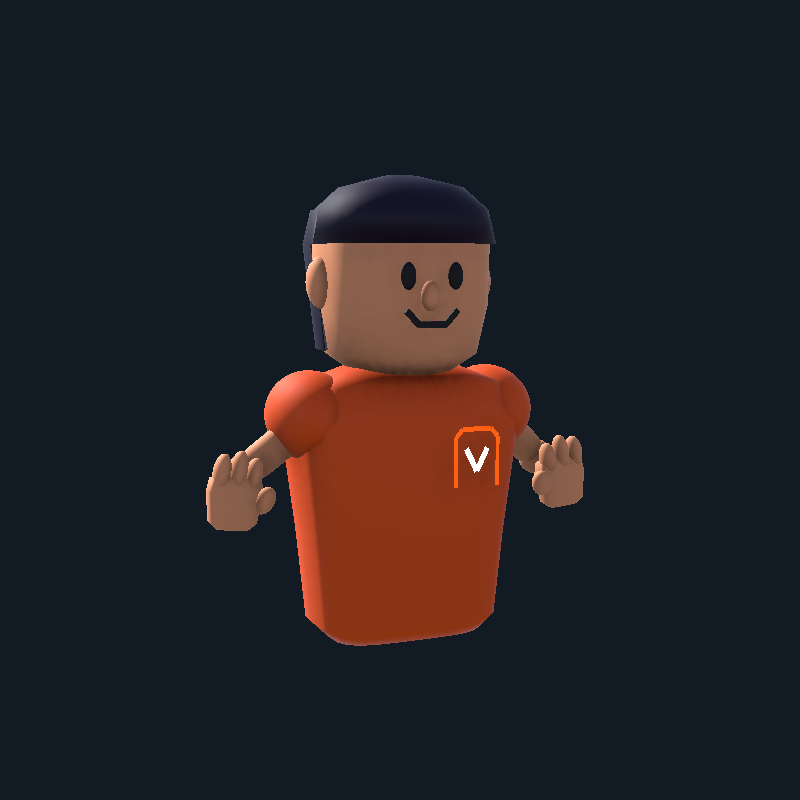
Find a hairstyle you like.

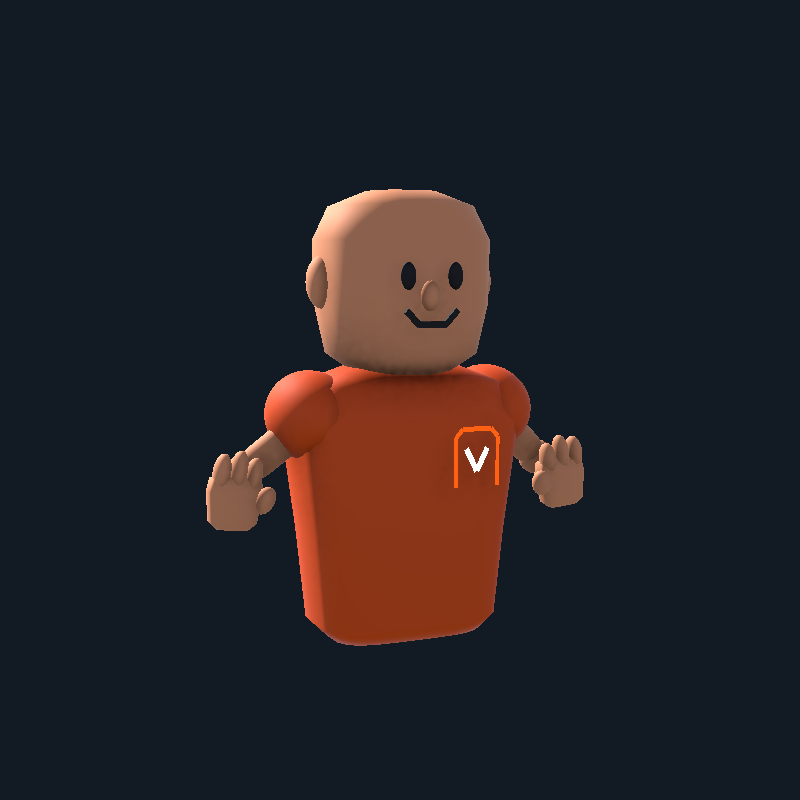
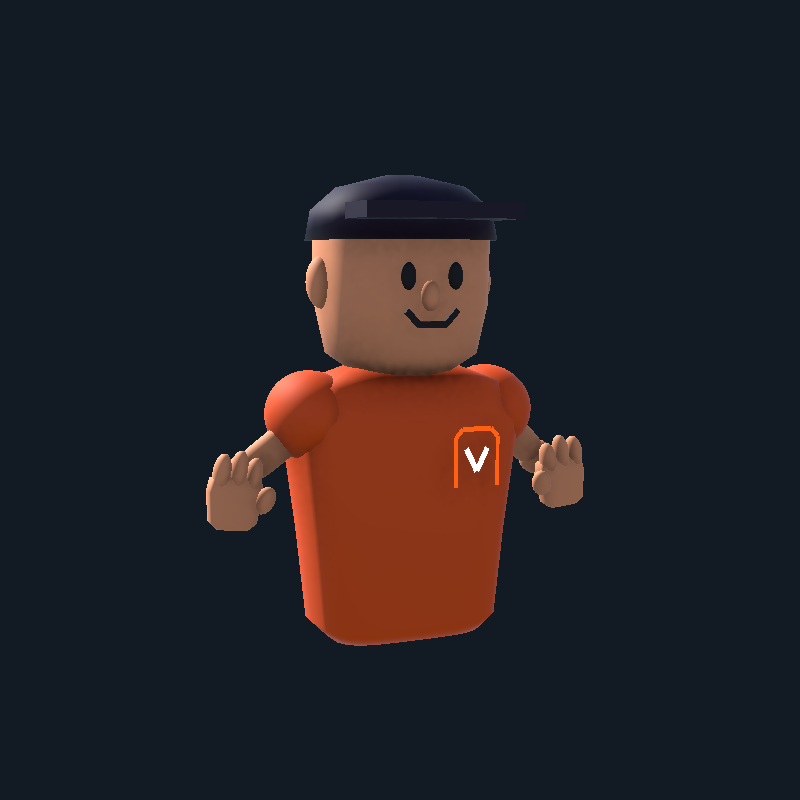
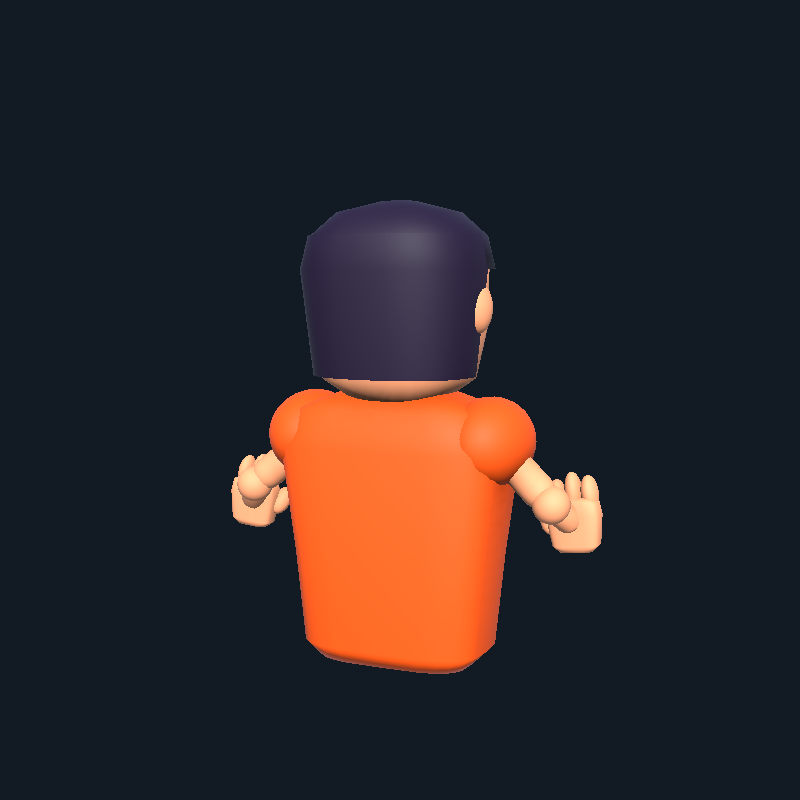
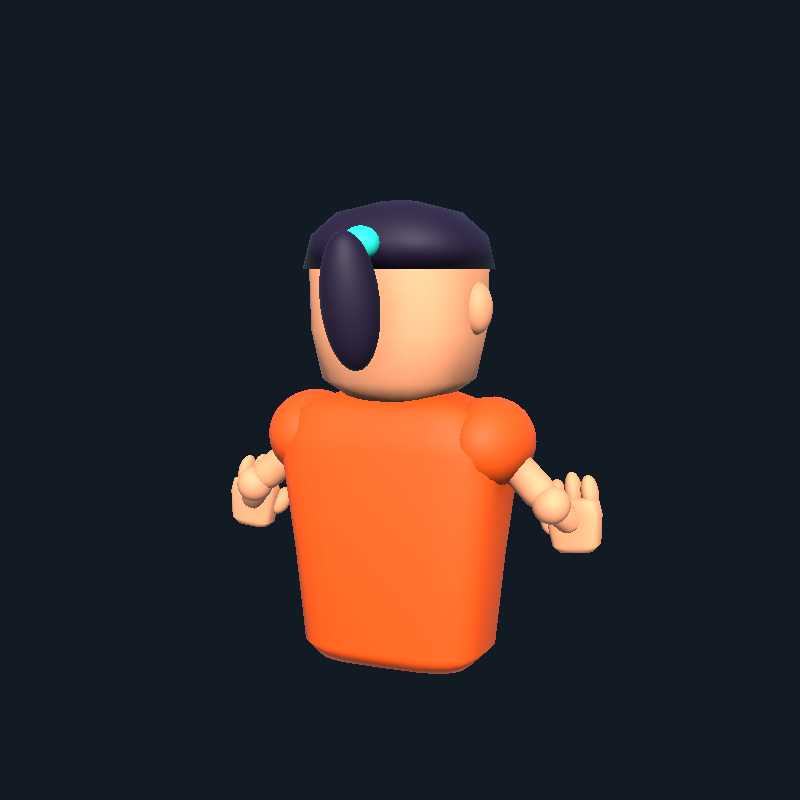
Check the shape from behind.

Turn your avatar in the wardrobe before choosing a style. These rear views show how the bob and ponytail sit around the head.

These screenshots show the wardrobe in the latest Windows development preview. Follow the VoidRoom roadmap for progress.

A little life in every visit.

Your avatar breathes and moves its head and hands while idle. Walking blends in arm swing, body sway and directional lean; faster movement changes the rhythm. Stopping, opening the menu or reaching a wall returns it to idle. Your motion and facial poses are shared with other players, and your live portrait follows the animated pose.

The first-person camera stays steady, and reaching hands keep their controlled pose. Use T or controller View to see your avatar in third person.

Try a look. Keep your favourites.

Make every colour yours.

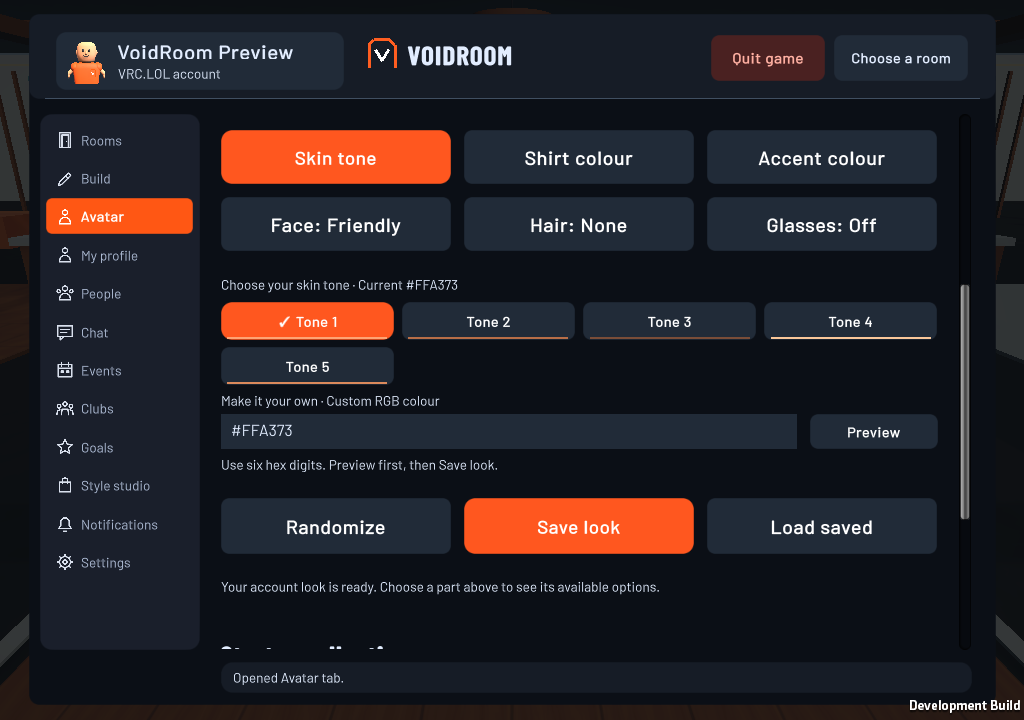
Open the Watch and choose Avatar. Pick a part to see its options, turn your preview, and save when it feels right. Skin, shirt and accents also accept your own six-digit RGB colour.

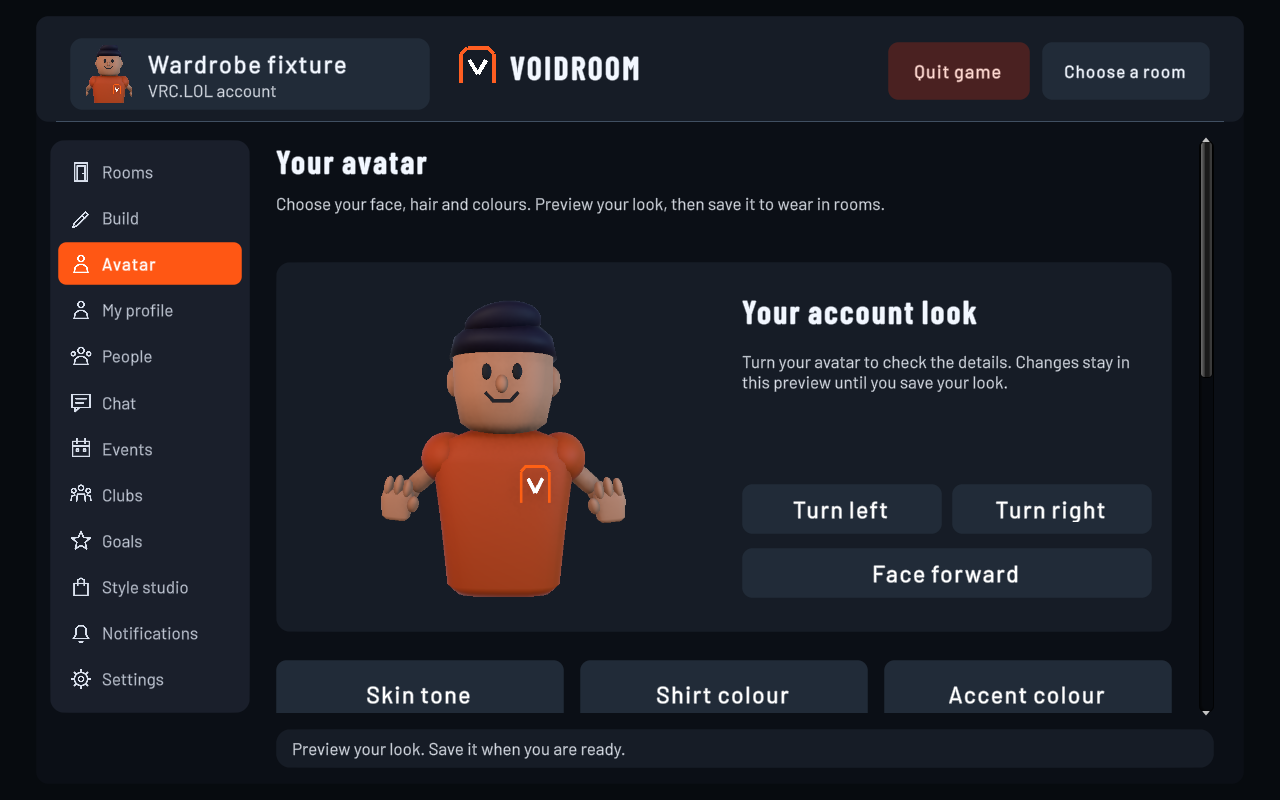
VoidRoom Avatar page showing an orange-shirt avatar, Turn left and Turn right controls, and skin, shirt, accent, face, hair and glasses categories
See the whole look. Turn left, turn right or face forward to check the details. Select this screenshot to enlarge it here.
Skin tone choices and a custom hex colour field above Preview, Randomize, Save look and Load saved in VoidRoom
Go beyond the presets. Enter a colour such as #FF570A, then choose Preview. Skin, shirt and accent colours each have their own field.
  1. Choose and preview.

    Pick a face, hairstyle, glasses or colour. Choices change your preview; your saved account look stays available.

  2. Save it to wear it.

    Choose Save look to keep the preview on your VRC.LOL-linked VoidRoom profile and use it in rooms.

  3. Start again when you want.

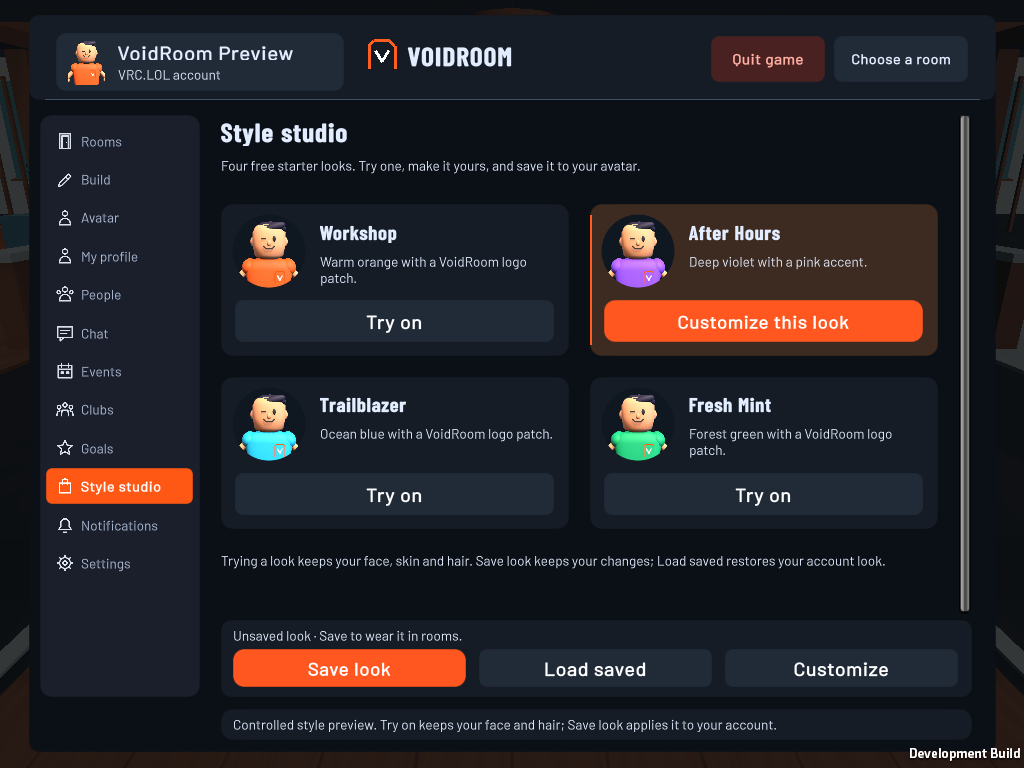
    Load saved restores your account look and replaces unsaved changes. Style studio offers four free starter outfits to try.

Where do I create my account?

Sign in or create your VRC.LOL account through the game's browser sign-in. Return to VoidRoom to finish your avatar in the Watch. Your account's Display Name identifies you in-game.

What if my custom colour is rejected?

Use exactly six hex digits, such as #19A3F7. The leading # is optional. Short forms, colour names and eight-digit colours are not accepted. A rejected value leaves your preview unchanged.

Do outfits replace my face and hair?

The four Style studio starter outfits change shirt and accent colours while keeping your face, skin, hair and glasses. Try an outfit first, then Save look to keep it. Automatic expressions and blinking keep your saved face style.

Your player. Your controls.

Less searching.
More playing.

Your avatar stays in view, your microphone has a clear mute control, and the menu keeps your next action close. These screenshots show the current Windows interface with a controlled example player.

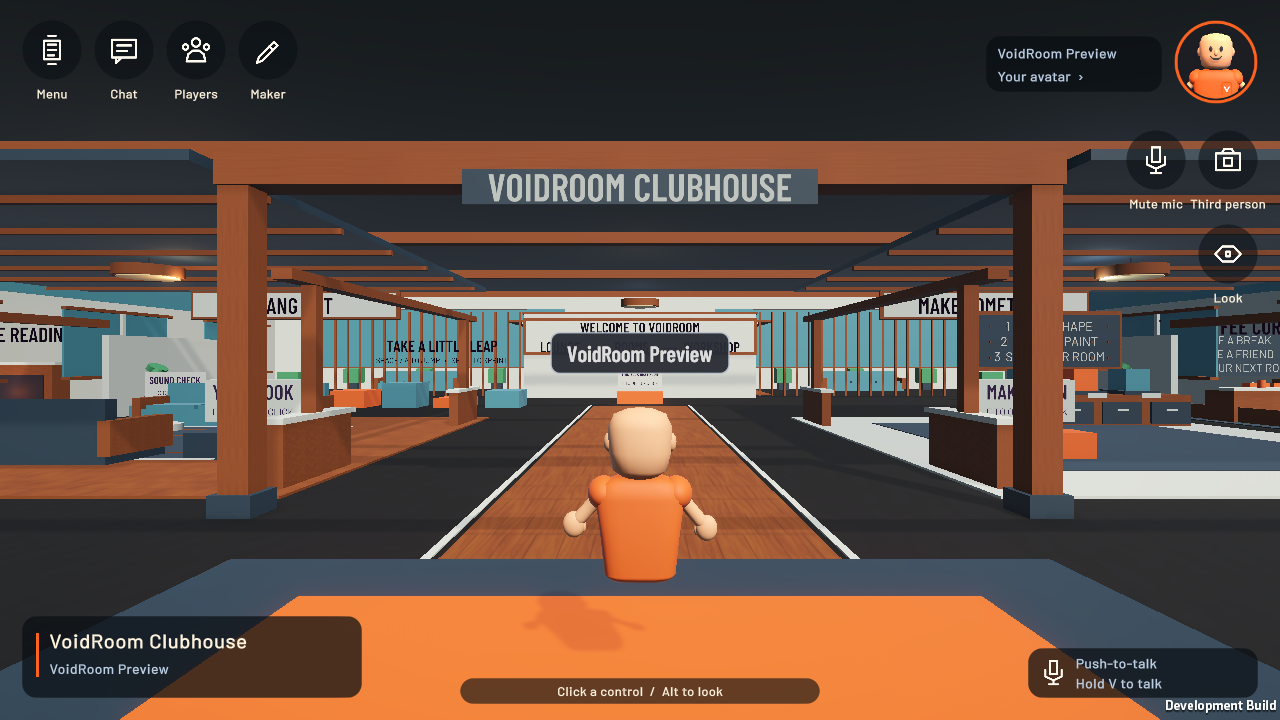
VoidRoom gameplay with circular controls and the player avatar bubble at the top right
Your avatar, at a glance. The bubble follows your avatar’s appearance and pose. Select it to open your profile. Select any screenshot to enlarge it here.
Back to playing
Open Menu, then choose Resume. Alt switches between looking around and using the pointer while playing.
Microphone
Mute mic stops your microphone from transmitting. The voice-status card opens Settings, where you can choose an input and test it locally. On your nameplate, green waves show detected voice, blue shows push-to-talk held, grey is idle and a red slash shows your microphone is muted. The badge does not replace checking that a friend can hear you.
Your view
Select the camera control, press T or use controller View to switch first- and third-person views.
Leave the game
Choose Quit game in the menu header. Unsaved room edits still ask you to save before leaving.
Style studio with four avatar outfit previews, After Hours selected and visible Save look controls
Try it. Make it yours. Outfit previews keep your face, skin and hair. A highlighted card shows the look you are trying.
Try a look
Open Style studio and choose Try on. Trying an outfit changes your preview; it does not save over your account look.
Make changes
Choose Customize this look or Avatar to edit colours, face, hair and glasses.
Keep or restore
Save look keeps your changes on your VRC.LOL-linked profile. Load saved restores your saved appearance. Both controls stay below the outfit collection.
Controller menus
LB and RB switch menu pages. Use the left stick or D-pad to choose an action, A to select and B to return to play.
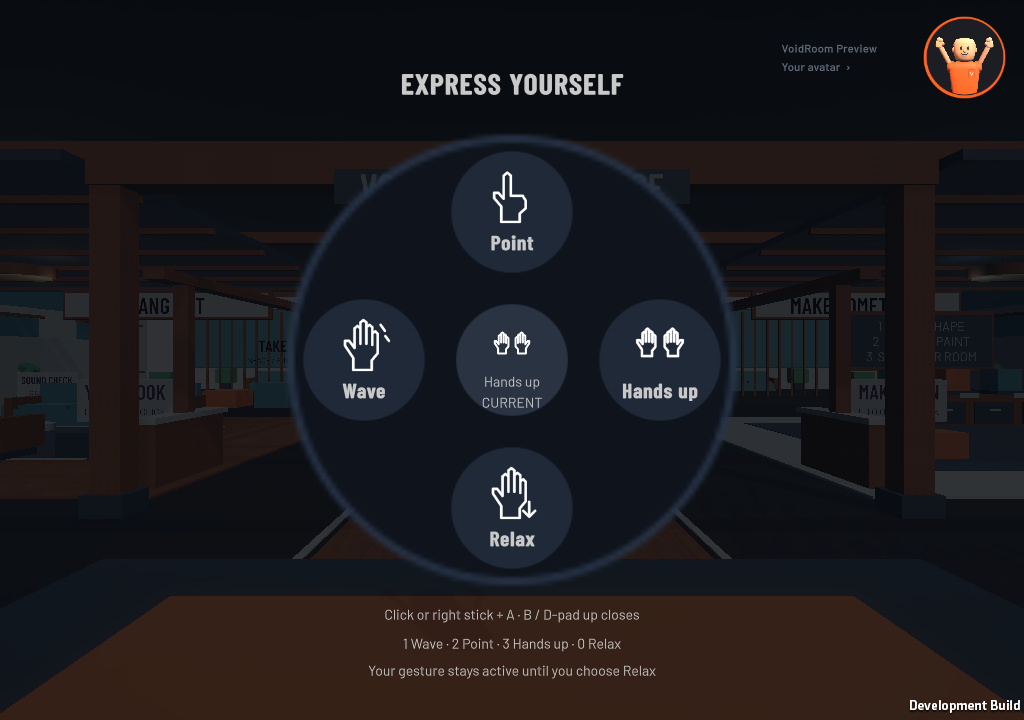
VoidRoom icon emote wheel with four labelled gestures, an active Hands up badge and the live avatar bubble
A wave. A point. A little personality. Open the wheel, choose a gesture and keep it until you are ready to relax. Select the image to enlarge it here.
VoidRoom Interface settings with Emote wheel: Press to open and instructions for hold mode
Your shortcut. Your choice. Switch between Press and Hold under Settings → Interface. The preference stays saved on this PC.

Say hello, your way

Let your hands do the talking.

Wave to a friend, point something out or put both hands up. Your saved avatar style stays yours. The live avatar bubble smoothly widens during gestures so your raised hands stay in view.

Press to open
By default, press B or controller D-pad up while playing outside Maker Pen editing.
Choose your gesture
Click a gesture, or press 1 Wave, 2 Point or 3 Hands up. On controller, choose with the right stick and press A.
Prefer holding the shortcut?
In Settings → Interface, change Emote wheel to Hold to open. Hold B or D-pad up, aim with the mouse or right stick, then release to choose. Return to the centre or neutral stick before releasing to cancel without changing your pose. Escape, or controller B, also cancels.
Keep it, or relax
Closing the wheel keeps the gesture. Choose Relax, or press 0 in the wheel, to return to your normal pose.
Back to building
Put the wheel away before equipping the Maker Pen. The pen’s grip takes priority for your right hand.

Gesture sharing is part of the preview. Its appearance to another player still needs multiplayer playtesting.

Make a connection

A familiar face.
A conversation waiting.

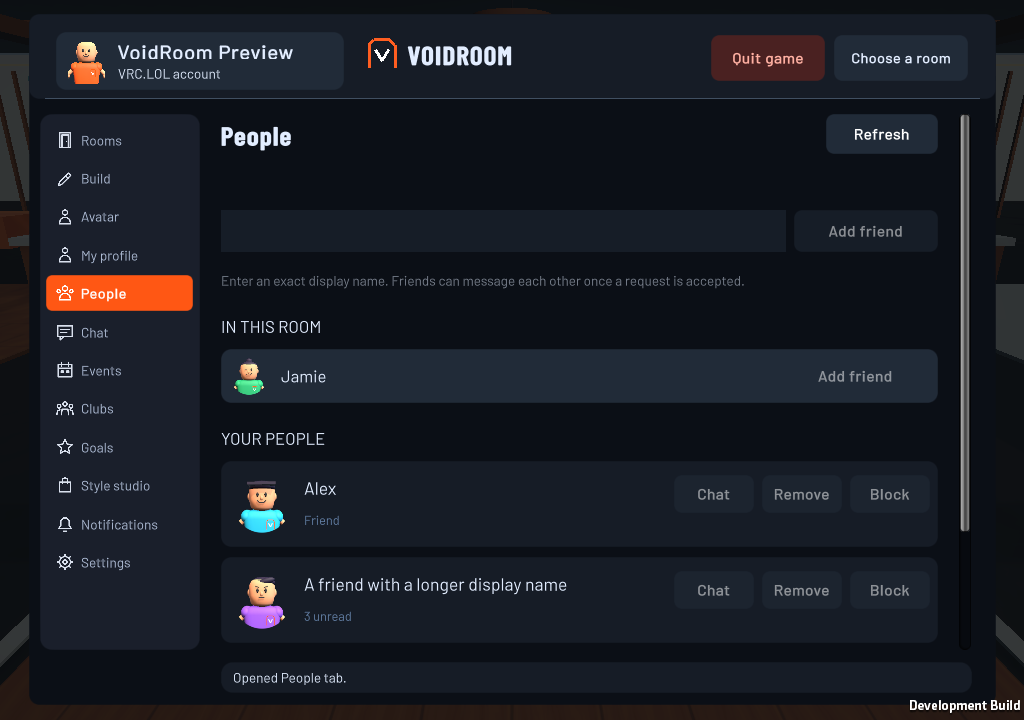
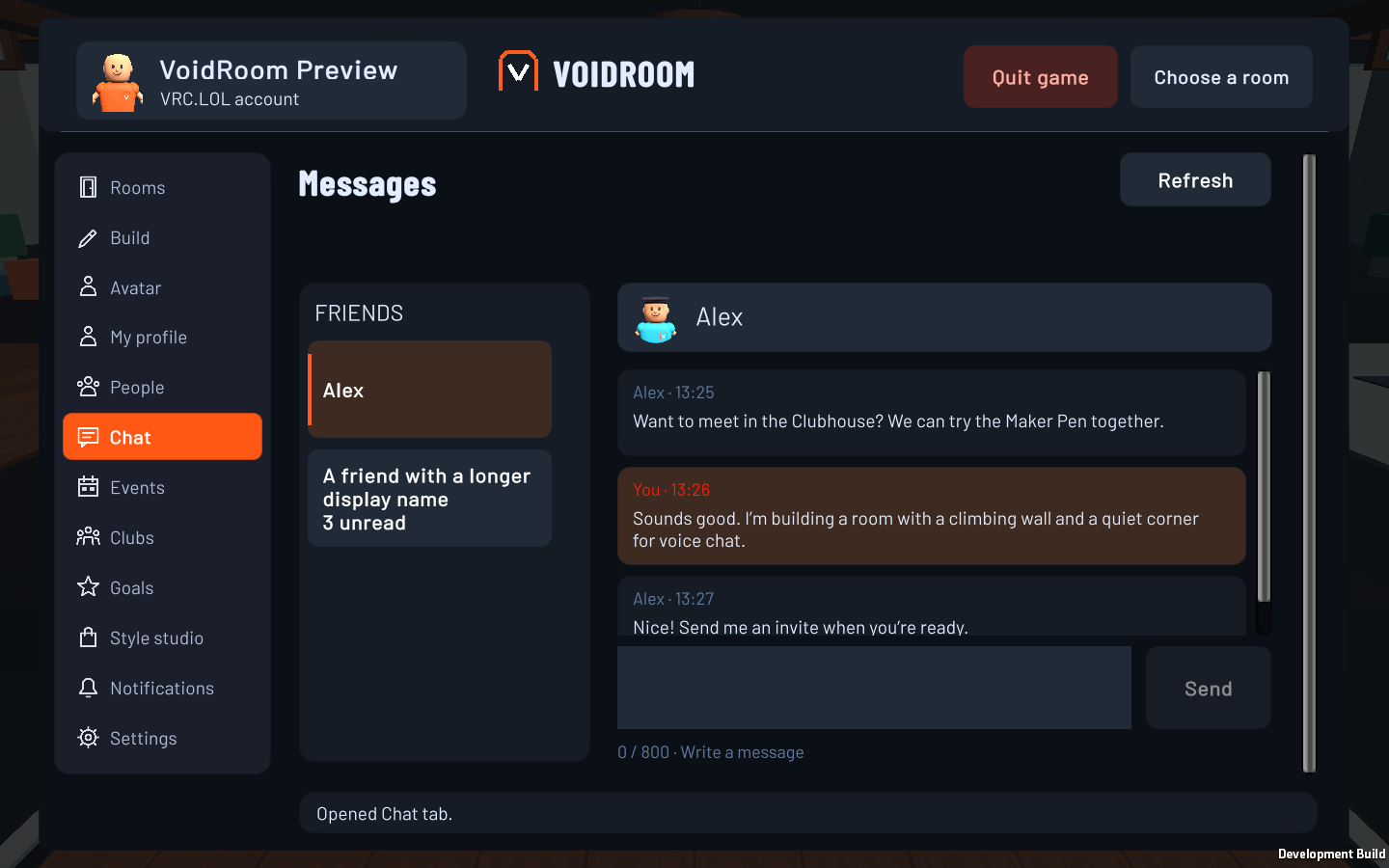
Add someone you met in a room, accept a request and catch up in Chat. People and conversation headers show saved avatar portraits and VRC.LOL Display Names.

Inside the Windows preview

Know your way around.

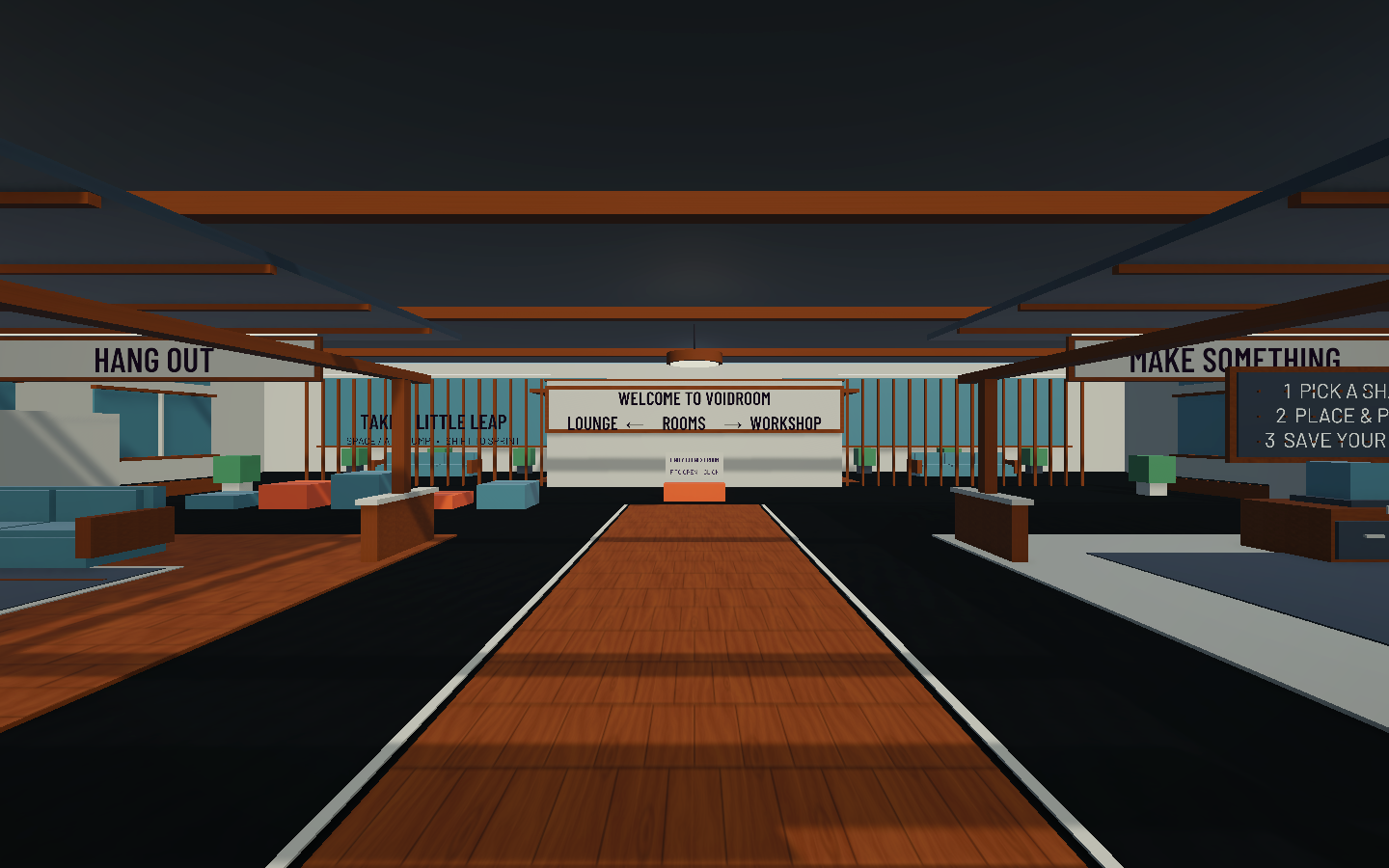
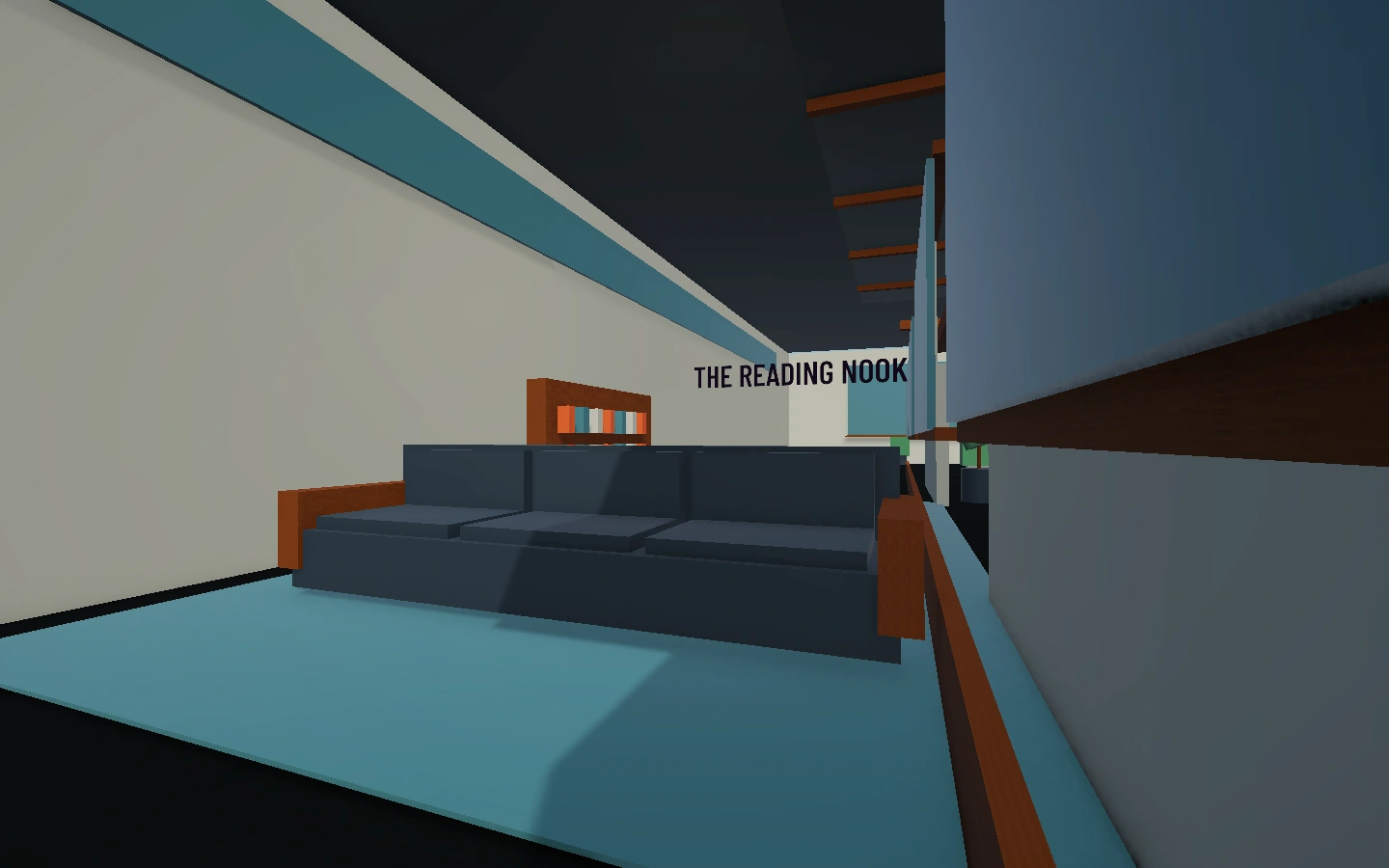
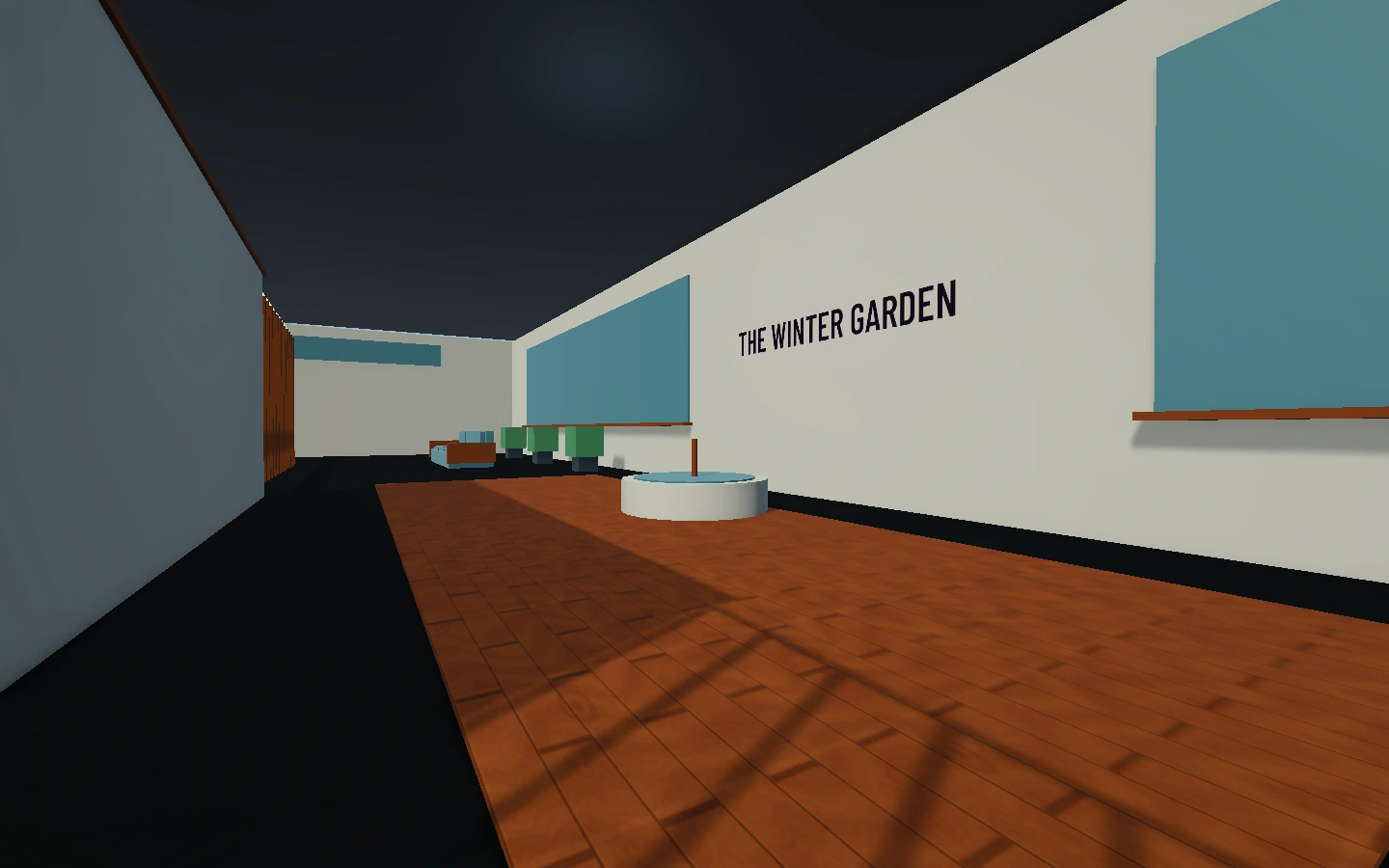
After sign-in, choose Quick Play or select VoidRoom Clubhouse in the room browser. The hosted starting room has a lounge, reading nook, cafe, winter garden, jump trail and activity stations.

VoidRoom Clubhouse with a lounge, jump trail and activity stations
Take a closer look ⤢ · Actual in-engine Clubhouse preview.
Move & look
WASD moves your player. Move the mouse to look around while playing.
Jump & sprint
Space jumps. Hold Shift to sprint, or choose Press to toggle in Controls. Press C to crouch, Z to go prone, or Z while sprinting to slide.
Your menu
Tab or Escape opens the menu. Choose Resume to return to play; Quit game is in the menu header.
Talk
In push-to-talk mode, hold V to speak and release it to stop. Select Mute mic to stop transmitting; test your microphone locally in Settings.
Your appearance
Open the avatar editor, turn the preview and choose Save look to keep it on your account.
Game updates
The latest client checks before sign-in, downloads and verifies an available release with progress, then waits for you to choose Restart before installing. Keep the game in a writable folder. See how updates work →

See it for yourself

Find the view you want.

Explore the Clubhouse, your own home and the game controls. Select any image to open it here.

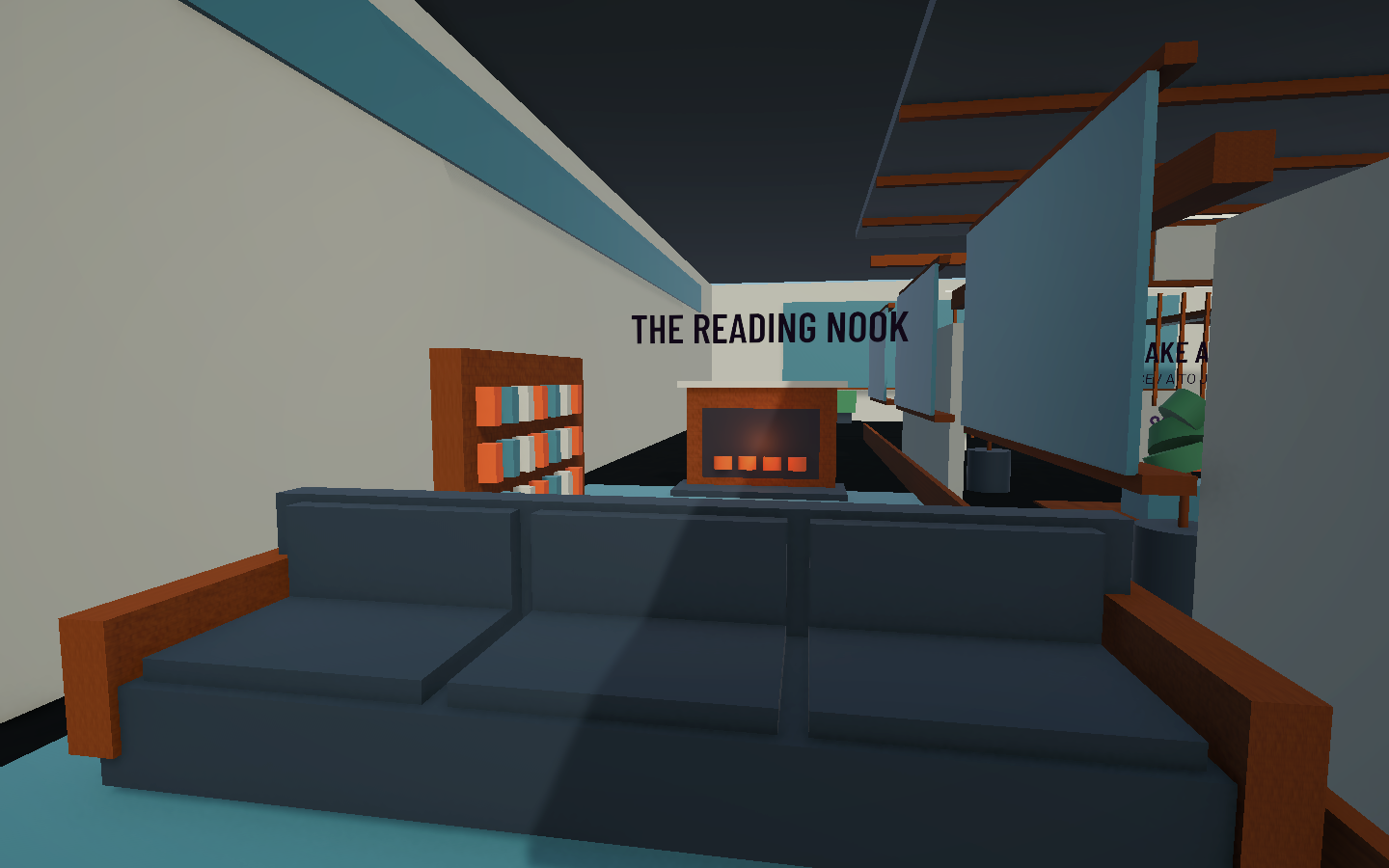
Clubhouse reading nook with bookshelves, seating and a fireplace
Settle into the reading nook. Bookshelves, cushioned seating and a fireplace in the current hosted Clubhouse.
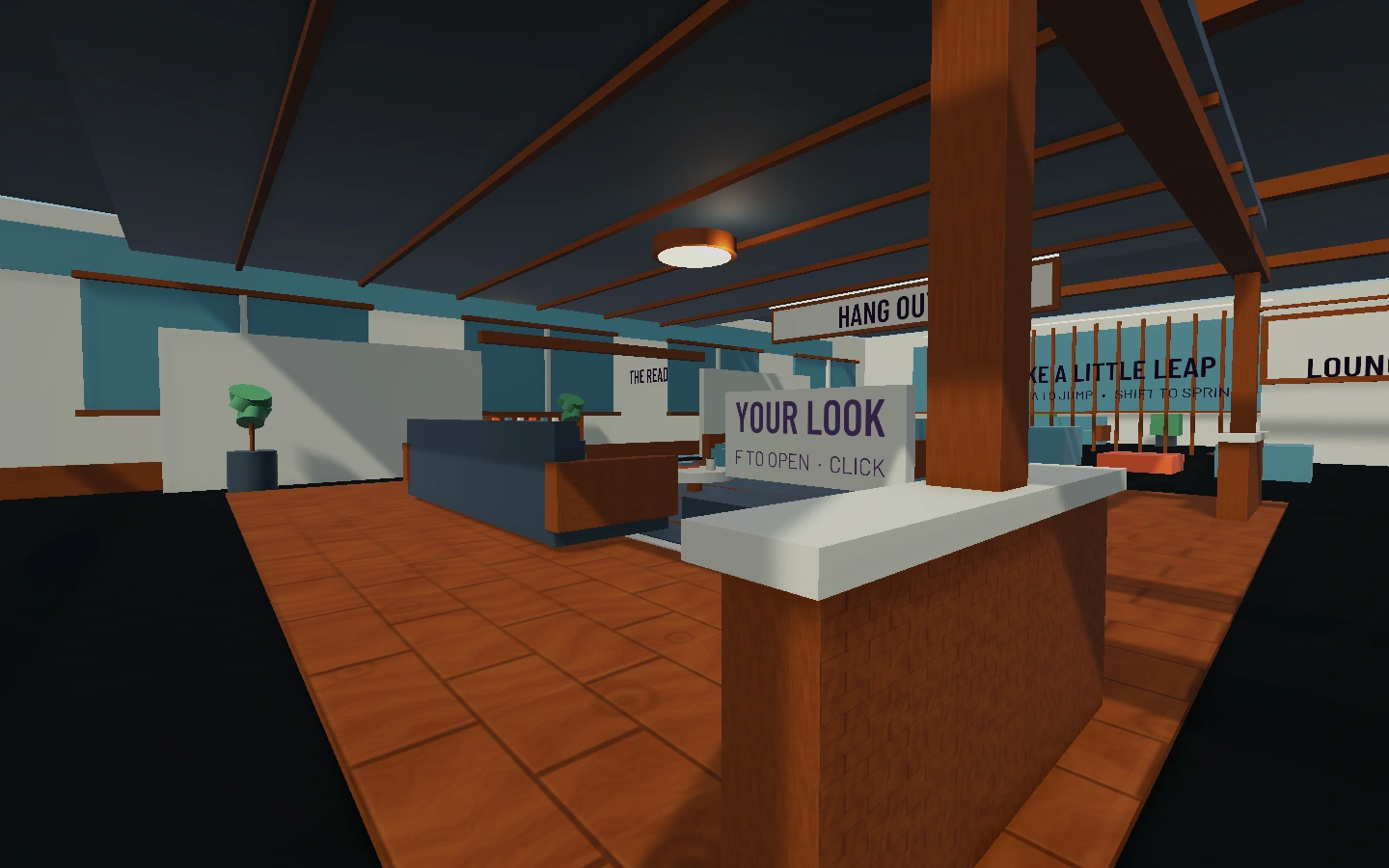
Clubhouse lounge with seating, planters and the avatar station
Settle into the lounge. Find your seat, try the jump trail or update your avatar at Your Look. Press F at a station to open it.
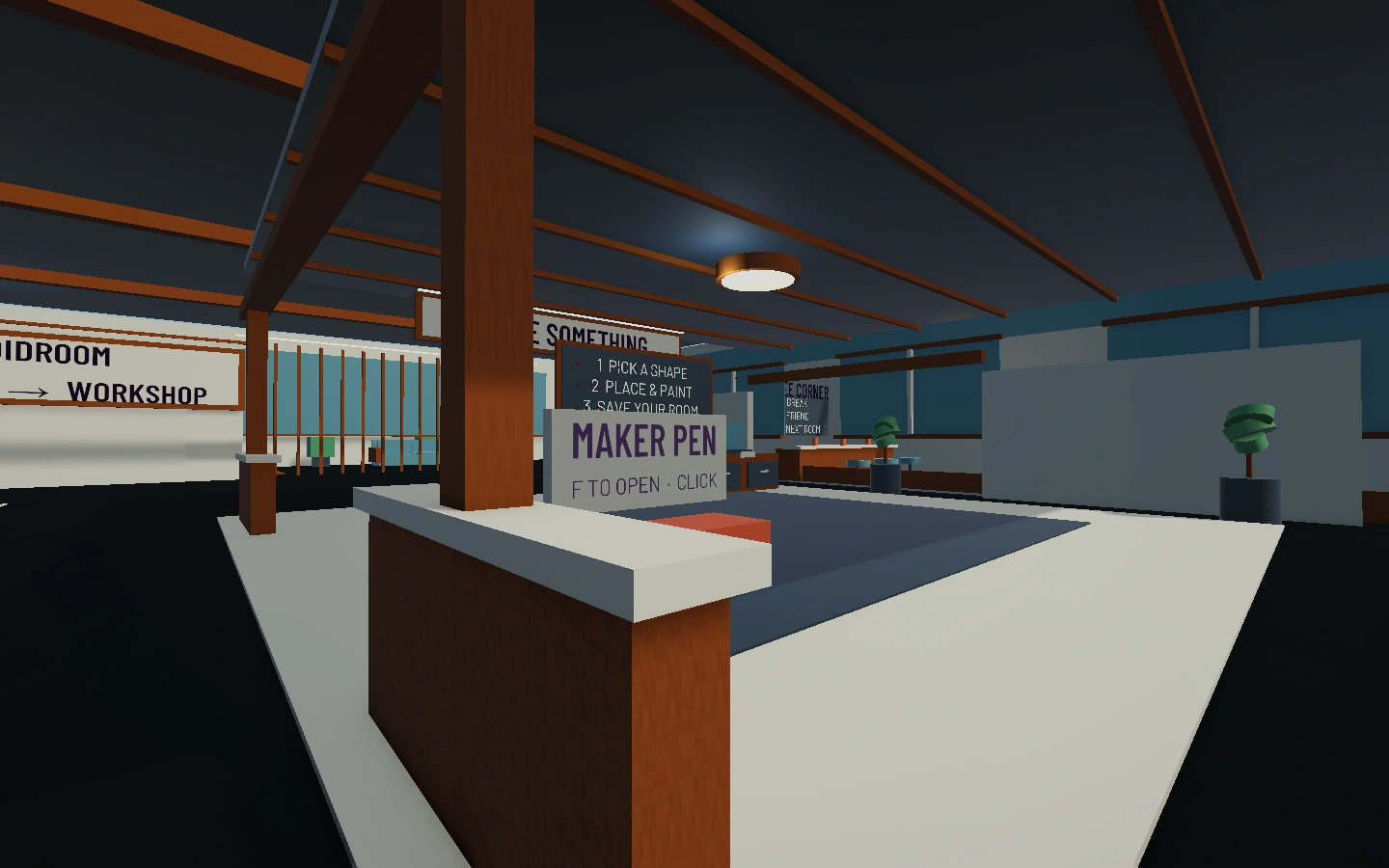
Clubhouse workshop with the Maker Pen station and clear building instructions
Find your next idea. Open the Maker Pen station to start a separate creation. Pick a shape, place and paint, then save your room.
A reading nook beyond the lounge, with seating and bookshelves.
Find a quieter corner. A reading nook beyond the lounge, with seating and bookshelves.
A separate furnished area off the workshop wing.
Meet at the coffee corner. A separate furnished area off the workshop wing.
Take the side paths to the pergola, fountain and quiet birds in the winter garden. Adjust room sounds in Settings.
Explore the winter garden. Take the side paths to the pergola, fountain and quiet birds in the winter garden. Adjust room sounds in Settings.
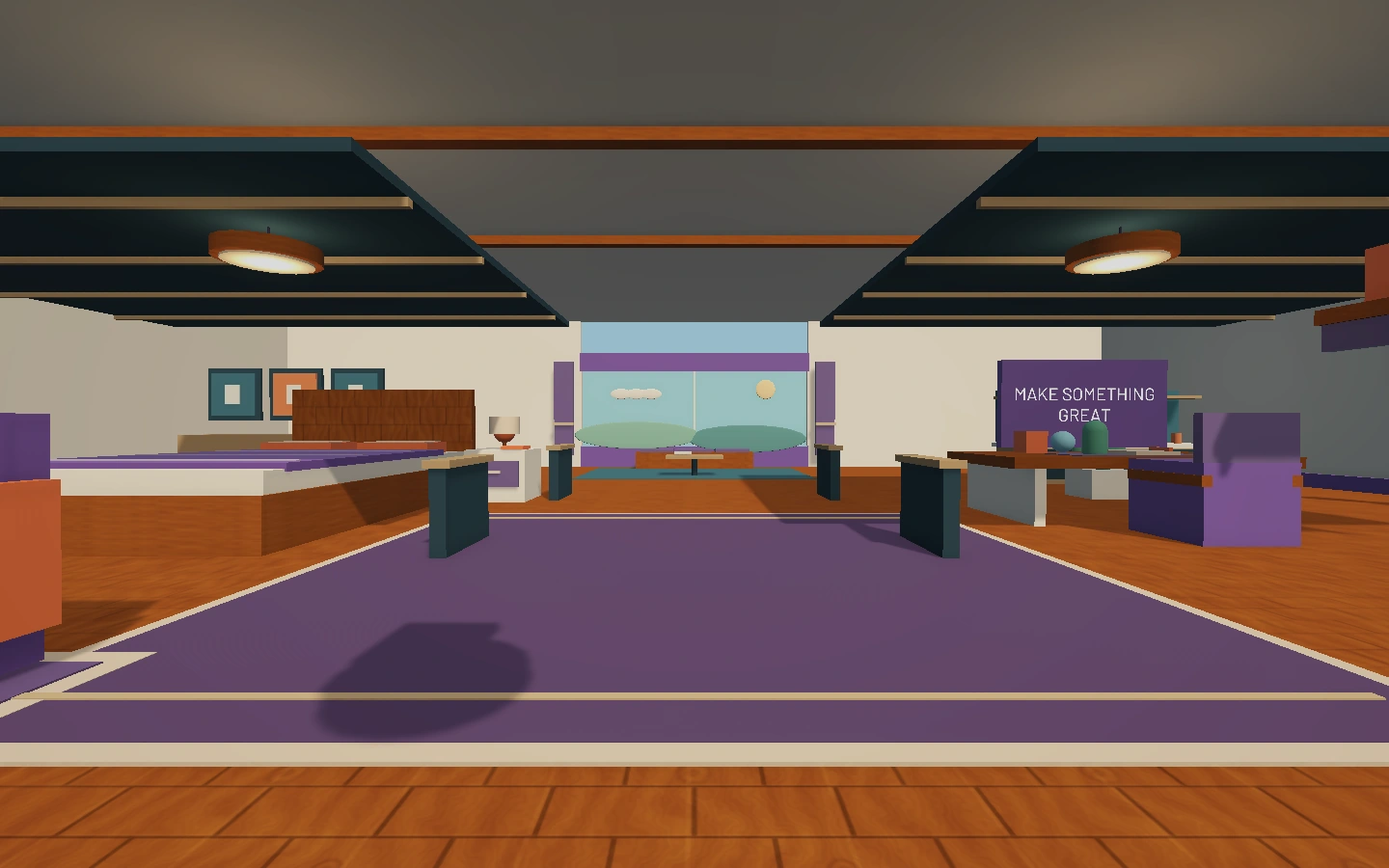
Your starting room now includes a kitchenette, gallery corner and window reading area. Customised saved homes are preserved.
Make more room for your ideas. Your starting room now includes a kitchenette, gallery corner and window reading area. Customised saved homes are preserved.
New personal-home reading corner with a rounded teal armchair, bookshelf, twelve coloured books, bordered rug and table lamp
A more comfortable home. The latest personal-home layout adds a furnished reading corner. New homes and untouched defaults receive it on a fresh load; customised saved homes stay yours. If your game already loaded an older default, restart VoidRoom before choosing My Home.
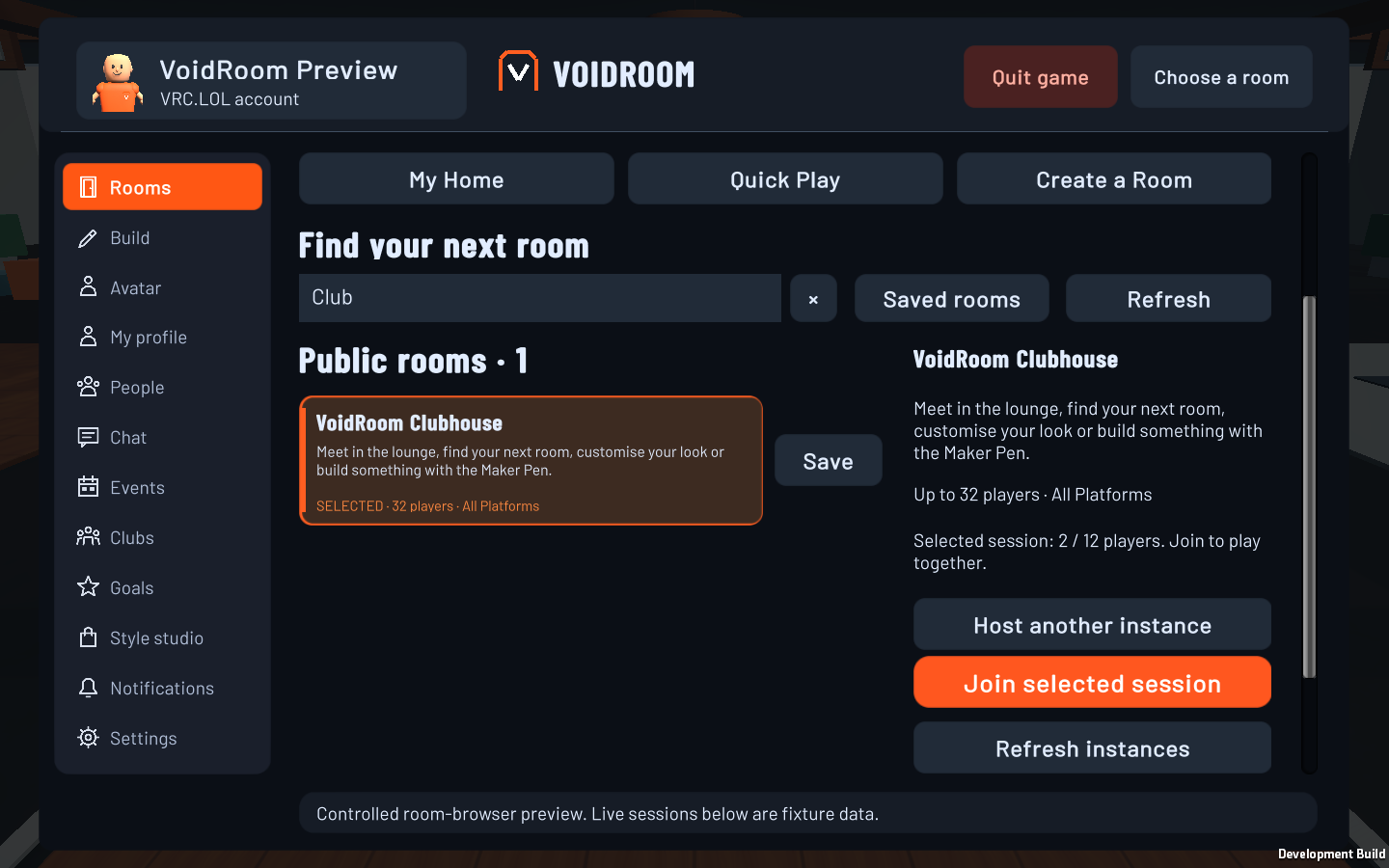
VoidRoom room browser with the Clubhouse clearly selected, a readable room description, search clearing and Join selected session button
Choose a room. Check a live session. Join your friends.
Save rooms to find them again; refresh sessions if your choice fills up or disappears. Controlled UI preview: player counts are example data.Enlarge the room browser
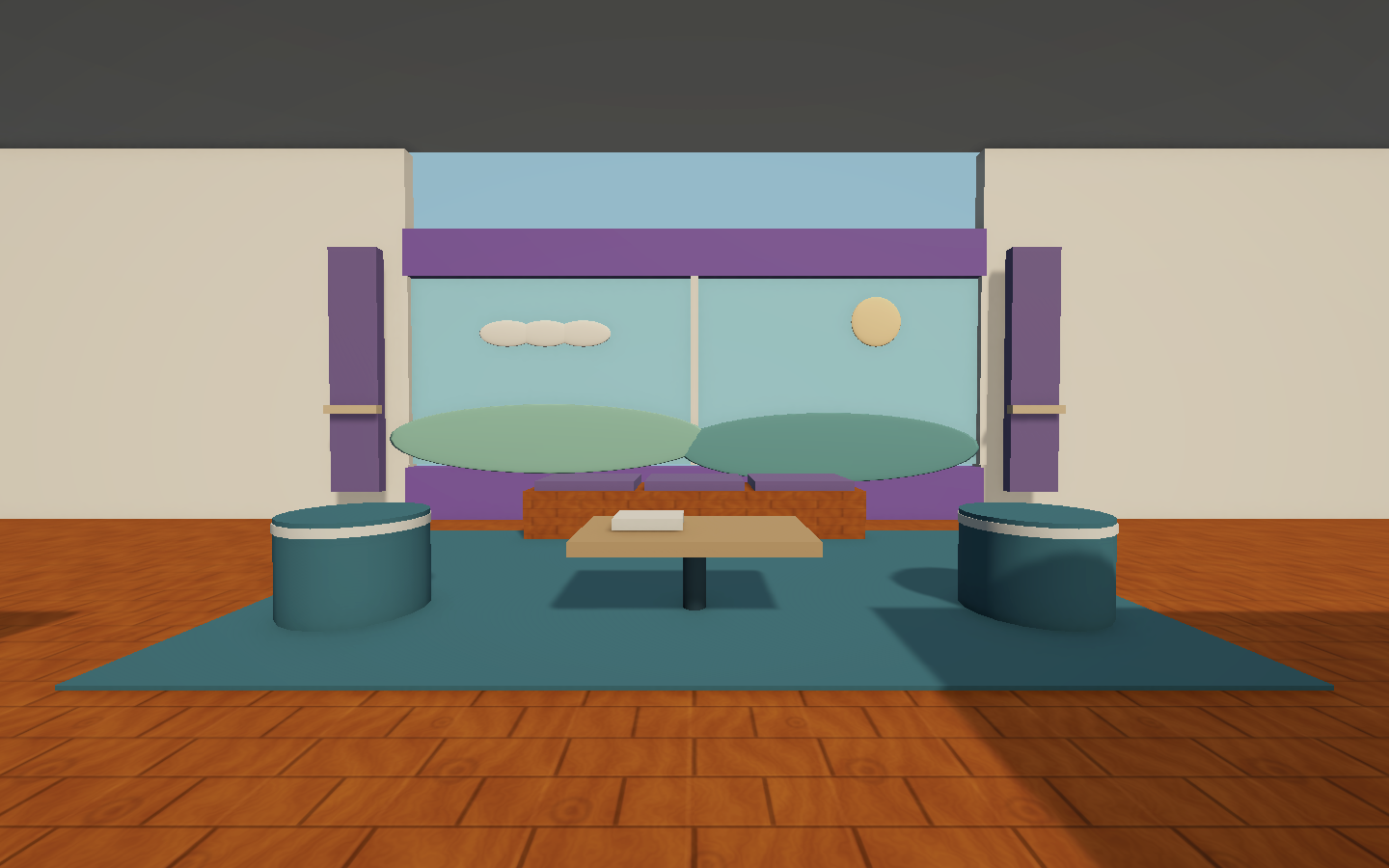
Teal reading poufs and a table beside the starter room’s cushioned window seat
A quieter place to begin. A fireplace lounge, reading seats and window ambience make the starter room more comfortable. Adjust room sounds in Settings.

Multiplayer and voice are still being tested. A successful connection does not confirm that another player can hear you; check together with a friend and share problems with the community.

Get comfortable. Then get creative.

Pick up the controls.

Movement, menus and the Maker Pen in the current Windows preview. Controller labels below use the Xbox layout.

Keyboard & mouse

WASD / Mouse
Move with the keys; move the mouse to look. Close the menu to return control to your player.
Space / Shift
Jump with Space. Sprint with Shift; Controls lets you choose Hold or Press to toggle.
C / Z
C toggles crouch; Z toggles prone. Press Z while sprinting to slide. Your Controls preferences and the room’s Game Mode rules determine which moves are available. Ctrl + Z remains Maker Pen Undo.
Tab / Esc
Open the Watch menu. Resume returns you to the room. Left Alt switches mouse capture while playing.
M / Click
Equip the Maker Pen with M. While equipped, M or Tab opens its palette. Close the palette to move and build; click to place, select or paint. In Select, Move, Rotate or Resize, right-drag the object under your crosshair. Use 1 Select, 2 Wire, 3 Move, 4 Rotate, 5 Resize and 6 Paint, or the working toolbar.
Mouse wheel
Adjust placement distance, rotation, scale or an aimed circuit value according to the active tool. While right-dragging, the wheel adjusts the held object within that same edit; release to finish and use Ctrl + Z to undo the whole drag.
T
Switch between first- and third-person views while playing. Your choice is saved; Maker Pen editing returns to it when finished.
B / Emotes
Outside Maker Pen editing, open the emote wheel. Choose Wave, Point or Hands up with the mouse, or press 1, 2 or 3. The pose stays active until you choose Relax (0). B closes the wheel.
V
Hold to speak in push-to-talk mode. For hands-free conversation, choose Open mic in Settings.

Controller

Left / right stick
Move with the left stick; look with the right. Press A to jump. Use the left-stick button to sprint; choose Hold or Press to toggle in Controls. Outside menus and Maker Pen editing, B cycles standing, crouching and prone, or starts a slide while sprinting.
Start / B
Start opens the Watch. B returns to play, or to Rooms if you have not entered a room yet.
Stick / D-pad / A
Choose a Watch action with the left stick or D-pad, then press A. Left/right adjusts a selected slider; LB/RB switch tabs.
Maker Pen: RT
Use the selected tool to place, select or paint. Open the palette with Start to choose tools and shapes; B puts the pen away.
Maker Pen: LB + X / Y
Hold LB and press X to Undo, or Y to Redo while editing in the room. The HUD dims unavailable history actions. A new edit replaces Redo; the palette and text fields keep these shortcuts from editing behind them.
Maker Pen: D-pad
Up/down changes selected rotation, scale, placement distance or an aimed circuit value. Palette selections scroll into view.
View button
Switch between first- and third-person views while playing. The Maker Pen uses first person for editing, then restores your saved choice.
Emotes: D-pad up
Outside Maker Pen editing, open the wheel with D-pad up. Choose with the right stick and press A. Select Relax to end the pose; B closes the wheel. Settings → Interface can switch to Hold to open: hold D-pad up, aim, then release. A neutral stick release cancels.
Tune your sticks
Settings → Controller tuning saves right-stick look speed and both-stick deadzone. Increase deadzone if a stick drifts. Reset controls restores 1.40× look speed and 16% deadzone.
Voice
Hold the right-stick button for push-to-talk, or choose Open mic in Settings. Keyboard V also works; release either control to stop talking.

Controller support is still being tested. Text-entry screens may need a keyboard or mouse. The update screen supports the D-pad and A button.

Before the conversation

Check your voice together.

The input bar helps you check the microphone. Another player confirms the sound reaches them.

Share a playtest with the community ↗
  1. 01
    Check the device

    In Settings, choose your microphone and start Test microphone. Speak normally: the input bar should move, and you should hear the local test playback.

  2. 02
    Join the same room

    Stop the local test, then meet your friend in the same live instance. Hold V or the controller’s right-stick button for push-to-talk, or select Open mic.

  3. 03
    Listen both ways

    Take turns talking. If sound cuts out, check the selected device and voice volume. Share the build version and what each person hears.

Better together

A place to make.
A reason to come back.

01

Settle into the clubhouse

Find the lounge, try the jump trail, and use the stations to open your avatar, room browser, and creator tools.

02

Show up as yourself

Pick your colours, change your look, and save your avatar to your account in the game.

03

Help shape what's next

Follow development and share your experiences with the VRC.LOL community.

Join the community

See you in there

A new world,
in the making.

Choose the Windows preview or the early Quest standalone test below. Sign in with your VRC.LOL account and make yourself at home. Your avatar and room drafts are managed in the game.

Looking for the Quest APK? →Follow the development roadmap

Windows preview

Checking

Checking the latest package…

Your first Windows session

  1. 01
    Get the Windows package

    Extract the whole ZIP into a writable folder, then open VoidRoom.exe. Keep the included updater and game data together.

  2. 02
    Make yourself at home

    The game opens VRC.LOL sign-in in your browser. Return to the game, confirm your account, then save your look in the avatar editor.

  3. 03
    Meet in the Clubhouse

    Choose Quick Play, or find VoidRoom Clubhouse in the room browser. Use the stations to explore, edit your avatar or open the Maker Pen.

Your next visit, kept up to date

Open the game.
We’ll get it ready.

VoidRoom handles startup updates inside the game. You can see what is happening before you sign in, and your VRC.LOL account, avatar and saved rooms stay with you.

  1. Check the latest release.VoidRoom checks for the current Windows preview before sign-in. If your version is current, continue to your account menu.
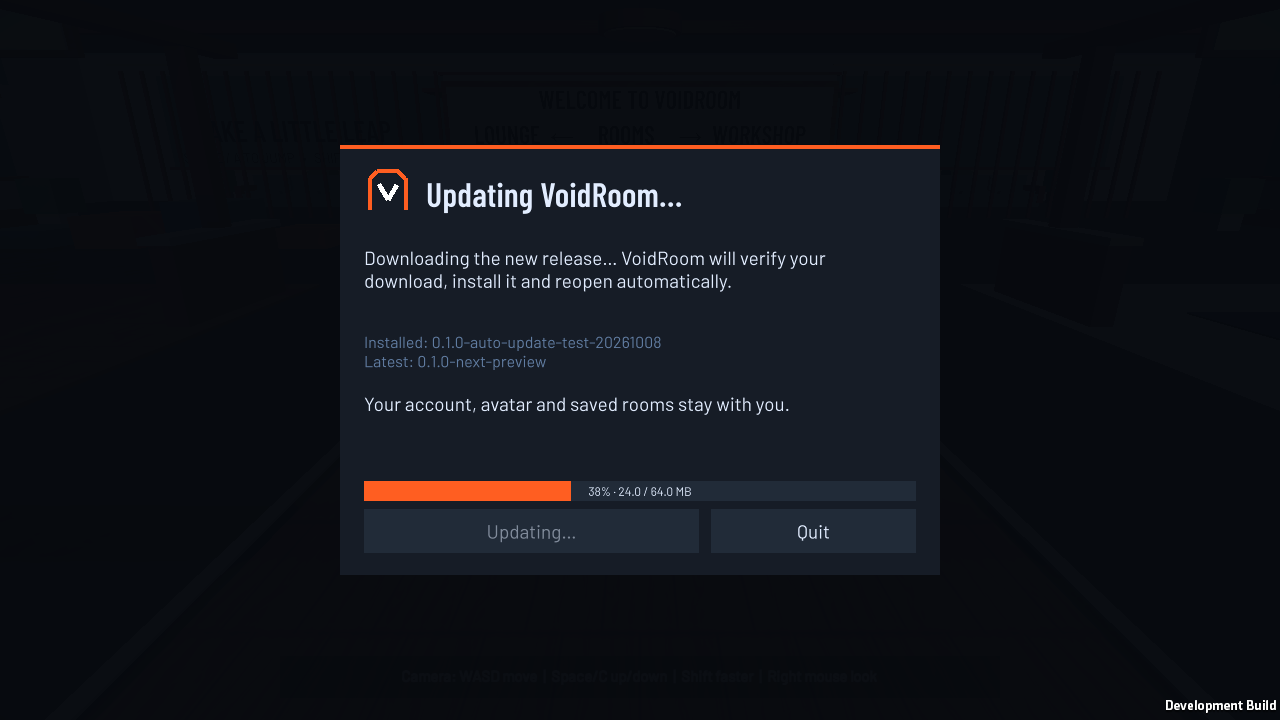
  2. Watch your download.An available update downloads automatically. The bar shows the percentage and how many MB have arrived; the game verifies the complete package before installing.
  3. Restart when you are ready.When the download is verified, choose Restart. VoidRoom waits for your click, then closes, installs and reopens. If anything fails, the retry screen explains the next step.

Already have an older build? Install the current preview once using its existing update flow, or extract the latest ZIP. After that, startup updates are automatic.

Get the current Windows preview →
VoidRoom update screen with a download progress bar showing 38 percent and 24 of 64 MB
Progress you can see. This is the game’s update interface, rendered with example download data. Select the image to enlarge it.
The update could not finish.

Check your connection and select Retry update. An interrupted or unverified download does not replace the installed game. A failed install stops at the recovery screen so the game does not keep restarting.

Windows blocked the update folder.

Close other VoidRoom windows and check Windows Security for a blocked updater. If the folder remains unwritable, extract the whole latest ZIP into a new folder you can write to, then open VoidRoom.exe there. Keep its updater and data folders together.

What about the room I’m editing?

Startup updates happen before sign-in. If you open Game updates while playing, download the release and choose Restart and install when ready. Unsaved room edits still ask to save before the game quits.

Step into VoidRoom · Quest standalone test

A room away.
A world to try.

Put on your headset and try the latest standalone test. Walk through rooms, use tracked controllers and take your first shots in Paintball practice — with your VRC.LOL account.

Runs on your headsetTouch controllersVRC.LOL sign-in

Explore in VR. Choose snap or smooth turning, move with the stick and point at room menu buttons.

Try Paintball practice. Open a local yard, fire, reload and swap markers at weapon stations.

Check your voice. Allow the microphone, watch its input bar and try push-to-talk.

A first test, with more to come. Physical headset testing is still ahead. Performance, comfort and multiplayer need feedback; the full Maker Pen, avatar editor and chat menus are still being adapted for VR.

Early test · APK

Download for standalone VR

VoidRoom for Quest

Targeting Quest 2 with Touch controllers. No PC streaming or Virtual Desktop required to play.

Package size
124.8 MB
Published
11 October 2026
Build
Quest preview · 20261011.6
Download Quest APK Installation guide

Direct download from dl.vrc.lol. Install the APK on your headset; this test is not listed in the Meta Store.

Build details & verification
Version
0.1.0-quest-preview-20261011.6
Android package
lol.vrc.voidroom
File size
124,750,844 bytes
Architecture
ARM64 · OpenXR

SHA-256

7e16dc58cf5190f3f3e78c17caa5e73e7bd7aa9e072b5f09ac4af3f7da8c6572View package details →

From download to your first room

Get set up.
Step inside.

Install from Quest Browser without a PC when your headset’s Files app offers Package Installer. The exact options depend on your Horizon OS version; there is a fallback below if that option is missing.

  1. Quest Browser

    Download the headset build.

    Open vrc.lol/voidroom inside Quest Browser. Find VoidRoom for Quest, then select Download Quest APK. Keep the browser open until the download finishes.

    Choose the APK, not the Windows ZIP. The Windows package cannot run as a standalone Quest app.

  2. Files → Downloads

    Install your downloaded APK.

    Open Files, then Downloads or Recent. Find the file named below. Open its three-dot menu and choose Open with → Package Installer. Review the prompt and select Install; allow installation from that app if prompted.

    VoidRoom-Quest-native-20261011-6.apk

    No Package Installer? See installation alternatives. Downloading the APK alone does not install it.

  3. Your VRC.LOL account

    Open VoidRoom and sign in.

    Select Open after installation. Later, look for VoidRoom in your app library; check the Unknown sources filter if it is not in the regular list.

    Start Continue with VRC.LOL inside the game. Complete sign-in in the headset browser, then use the Quest app switcher to return to VoidRoom and confirm the account shown. Your game session starts this process; signing in to the website alone does not connect the game.
    The browser’s Open VoidRoom button is for Windows. On Quest, switch back to the app yourself.

  4. Your first session

    Find a room. Try the controls.

    Aim the right controller at a menu button and use its trigger. Select a room, then Join selected room. Press right B to reopen the room menu while playing.

    Choose Paintball practice for a local yard. In Voice settings, allow microphone access if asked, choose a voice mode and start the microphone test. Speak normally and watch the input bar.

    Practice is local. A successful practice session does not confirm a multiplayer match or that another player can hear you.

Touch controllers

Keep your next move close.

These are the controls in this APK. Menu selection uses the right controller; Paintball firing and weapon pickup use your selected dominant hand.

Movement & menus

L Stick
Move in your view direction
R Stick
Your selected turn mode; snap 30° by default
A Right
Jump
B Right
Open / close the room menu
Right trigger
Select a menu button
VR comfort
Open the room menu with B, then select VR comfort

Paintball & voice

Dominant trigger
Fire your marker during play
Y Left
Reload in Paintball
Dominant grip
Swap a weapon near a station
X Left
Hold to talk in push-to-talk mode
Voice settings
Test input, select a mode and mute

A little help along the way

Find your next step.

Headset software and installation options can differ. Start with the issue you see.

How do I change turning and movement direction?

Press B to open the room menu, then choose VR comfort. Select Snap, Smooth or Off. Snap angles are 15°, 30°, 45°, 60° or 90°; smooth speeds are 45, 60, 90, 120 or 180 degrees per second. The angle and speed controls are available only for their matching turn mode.

Movement can follow your headset or left controller. These settings stay saved on this headset. Restore comfort defaults returns to 30° snap turns, a saved smooth speed of 90° per second and headset-directed movement.

Snap is the default. For smooth turning, start slowly and switch back if it feels uncomfortable. With turning Off, rotate your body inside your safe boundary. Return the right stick to centre before resuming play after a menu or tracking interruption.

Files does not offer Package Installer.

Check for a Horizon OS update. If an APK installer is already installed on your headset, use it to open the downloaded VoidRoom APK.

Otherwise follow SideQuest’s mobile/headset setup. If its supported route requires a computer on your device, use the official computer setup instead. A headset-only route is not guaranteed for every OS version.

The Files method is described in SideQuest founder Shane Harris’s installation announcement. VoidRoom’s physical headset installation still needs verification.

The APK will not install or says “App not installed”.

Check free storage and make sure the download completed. Remove the incomplete downloaded file and download the APK again from this page. If an existing VoidRoom installation has a different signature, stop and report the conflict before uninstalling: uninstalling removes local app data.

Include the exact installer message, Quest model and Horizon OS version when asking for help. Do not install the Windows ZIP.

I cannot find VoidRoom after installing.

Select Open in the installer first. In your app library, check the Unknown sources filter. Downloading the file without finishing the installer does not add an app. If Open fails or the game immediately closes, report that separately with your headset model and build version.

Browser sign-in finished, but I am still waiting.

Return to the running game through the Quest app switcher and check for the account confirmation. The game must start the sign-in request. A separate website login or the Windows Open VoidRoom link will not complete Quest handoff.

If the request expired, cancel it in the game and start Continue with VRC.LOL again. Use the most recent request rather than reopening an old callback link.

The microphone bar stays still or my friend cannot hear me.

Open Voice settings and check that the microphone is allowed and unmuted. Start the microphone test and watch its input bar. In push-to-talk mode, hold left X while speaking. Stop the local test before checking with another player in the same live instance.

A moving bar proves local input activity; another player listening confirms delivery. Report whether local input or remote sound is missing, and whether you chose Open mic or push-to-talk.

Movement, tracking or Paintball feels wrong.

Check your Quest boundary and controller tracking, release the triggers, then try a fresh menu selection. Start with a short Paintball practice session. If the game stutters, a hand jumps or a menu cannot be selected, describe the room, action and button used. These areas still need physical Quest 2 testing.

The next build

Keep your headset test current.

Quest updates are manual for now. Close VoidRoom, download the newer APK and install it over the existing copy. Keep your current installation if a signature conflict appears, and report it before removing anything.

Check the published build ↑

Help shape what comes next

Share the part that matters.

Tell us your Quest model, Horizon OS version, VoidRoom build, what you did and what happened. A short description of the room and controller button helps reproduce the problem.

Never include sign-in codes, session tokens or hosting credentials.

Share feedback with VRC.LOL ↗

Before you jump in.

Which account do I use?

Use your VRC.LOL account, or create one through auth.vrc.lol. After browser sign-in, return to the game and confirm your account. Save your avatar and room drafts in the game; the website is where you download and explore.

Can I play with friends right now?

The VoidRoom Clubhouse has a dedicated server. Choose Quick Play or find it in the game’s room browser. Multiplayer and voice remain in development; share connection or audio problems with the VRC.LOL community.

Which devices can I use?

The Windows preview and a first Quest standalone test APK are available. The APK targets Quest 2 and runs on the headset itself. It is an early test, not a Meta Store release, and has not yet been playtested on a physical headset. Read the Quest installation guide and controls.

How do I save my avatar?

Open Avatar in the game to edit your face, hair and colours, or Style studio to try a starter outfit. Choose Save look to keep your changes. Load saved restores your account appearance.

How do I mix and sample colours?

In the Maker Pen, open Palette. Adjust the RGB sliders or enter six hex digits, such as #3A8FCE. Apply custom colour paints your selected object once and sets the brush for new shapes. Sample selected colour copies its tint without changing the room. Paint in room closes the palette and activates painting: aim at an object, then click or press RT. Undo restores each paint edit.

How do I publish a room?

Save a separate room draft with the Maker Pen, then choose Submit for review in Create. Uploading happens automatically. My Rooms → Version history shows each saved submission and its upload and review status. Your personal home stays private.

What happens when a game update is available?

On Quest, download the newer APK and install it over your existing copy; there is no automatic Quest installer yet. On Windows, the latest client checks before sign-in. An available update downloads automatically with a percentage and MB progress bar, then is verified. Choose Restart when you are ready to install and reopen the game. Older clients need to install this version once using their existing update flow. Failed updates stay on a retry screen. If Windows refuses access to the installation folder, extract the complete latest ZIP into a new writable folder. Updates opened during play still ask you to save unsaved room edits before quitting.

What if my saved sign-in has expired?

Choose Continue with VRC.LOL to reconnect your player. The current game shows a recovery screen if a saved session is rejected; Enter or controller A opens sign-in again. If an older build shows only the room with no menu, close and reopen it to install the latest update, or download and extract the complete latest ZIP into a writable folder.

Does signing in here also sign in the game?

Website sign-in connects this browser session. Start sign-in inside VoidRoom to connect your game session, then return from the browser and confirm the account shown in the game. Use the same VRC.LOL account for both.

What should I do if joining a room stalls?

Check your connection and the room’s session status. Cancel the attempt and retry from the room browser. If it keeps failing, share the build version and the loading stage with the community; never share an account token or hosting credential.

How do I test my microphone?

Open Settings, choose your microphone and start Test microphone. Watch the input bar while speaking, then check the local playback. Stop the test before joining a friend in the same room. Hold V or the controller’s right-stick button for push-to-talk, or choose Open mic; the Speaking indicator shows input activity, while your friend confirms they can hear you.

Can I change the camera and interface sounds?

Press T (F5 also works) or the controller’s View button to switch views while playing. Settings → Your view & interface includes the saved camera choice, custom cursor, UI sound switch and interface volume. Room ambience has its own volume control; voice settings remain separate.

Is VoidRoom affiliated with Rec Room?

VoidRoom is an independent project. Rec Room is a separate game and company.

VOIDROOM COMMUNITY

Find the people behind the worlds.

Explore shared VoidRoom profiles, project connections and roles. Private rooms and game details stay private.

Room details

Open original image in a new tab ↗